How to Optimize Windows 11 for Low-End PCs
How to Optimize Windows 11 for Low-End PCs
If your Windows 11 PC has 4GB of RAM, a spinning hard drive, or a processor that was entry-level five years ago, you know the feeling: the Start menu takes a second to open, Chrome eats every byte of memory, and a Windows update can bring the whole machine to its knees. The good news is that Windows 11 is far more tunable than it looks. When you optimize Windows 11 for a low-end PC, you are not chasing a magic setting — you are removing the work the machine does not need to do, so the little hardware you have goes to the things you actually use.
This guide walks through every safe, reversible tweak in order of impact, from the five-minute wins to the deeper settings. Nothing here requires paid software, and nothing deletes files you need. Follow the steps in order, restart when asked, and test as you go — most low-end PCs feel noticeably faster after the first three sections alone.
Check What Is Actually Slowing Your PC Down
Before changing anything, find the bottleneck. Open Task Manager with Ctrl + Shift + Esc, click the Performance tab, and watch CPU, Memory, Disk and GPU while you do your normal work for a minute. If Memory sits above 85 percent with only a browser open, RAM is your bottleneck. If Disk is pinned at 100 percent while the PC is idle, your hard drive is the problem. If CPU is constantly high, a background process or startup app is misbehaving.
Click the Processes tab, sort by CPU and then by Memory, and note the top offenders. Common culprits on low-end machines are browsers with dozens of tabs, cloud sync tools, antivirus scans running at the wrong time, and Windows Search indexing a huge drive. Knowing the bottleneck keeps you from wasting time on tweaks that will not help — a PC with 4GB of RAM needs different fixes than a PC with a slow hard drive.
Also check your specs once so you know what you are working with: press Windows + R, type msinfo32, and press Enter. Note the installed RAM, processor, and whether your main drive is an HDD or SSD. If your PC still runs on a mechanical hard drive, every tip in this guide helps, but the single biggest upgrade you can ever make is swapping that drive for a cheap SATA SSD — even a small one for Windows alone transforms boot and app load times.
Turn Off Visual Effects and Transparency
Windows 11’s animations, shadows and transparency look nice, but on a weak CPU and integrated graphics they cost real performance. This is the fastest visible win on a low-end PC.
Press Windows + R, type sysdm.cpl, press Enter, go to the Advanced tab and click Settings under Performance. Choose “Adjust for best performance” to turn off every effect at once, or pick Custom and keep only “Show thumbnails instead of icons” and “Smooth edges of screen fonts” if you want the desktop to stay readable. Click Apply.
Then go to Settings > Personalization > Colors and turn off Transparency effects. In Settings > Accessibility > Visual effects, turn off Animation effects too. Your PC will look plainer — windows will snap open instead of sliding — but menus, Alt-Tab and window dragging will feel instant instead of laggy. On machines with old integrated graphics, this one change alone can make the desktop feel like a different computer.
Stop Startup Apps From Eating Your Boot
Every app that launches at login steals RAM and CPU before you have even opened anything. Windows 11 makes this easy to control.
Open Task Manager, go to the Startup apps tab, and look at the Startup impact column. Disable anything marked High that you do not need the moment Windows starts: chat apps, game launchers, cloud storage, updaters, printer helpers and manufacturer utilities. Keep your antivirus and audio drivers enabled; almost everything else can wait until you open it yourself.
Be honest about what you actually use daily. That messaging app you open twice a week does not need to start with Windows. Steam, Spotify, Discord and OneDrive are classic offenders — each can quietly consume hundreds of megabytes from the first minute. After disabling the extras, restart and time your boot. Most low-end PCs reach a usable desktop 30 to 60 seconds faster with a clean startup list, and that RAM stays free for your browser instead.
Free Up RAM: Close the Hidden Memory Hogs
On a 4GB or 8GB machine, RAM is the scarcest resource, and browsers are the hungriest tenants. A few habits matter more than any setting.
First, keep your browser tab count under control. Ten tabs of heavy sites can use more RAM than Windows itself. Use bookmarks and tab groups instead of leaving everything open, and close tabs you are done with. In Chrome or Edge, turn on Memory Saver (Settings > Performance) so inactive tabs are put to sleep and their memory is returned to the system. Edge is the lighter choice on low-end Windows PCs because it is built on the same engine with tighter Windows integration — worth trying if Chrome feels heavy.
Second, check for apps running in the background that you forgot about. In Settings > Apps > Installed apps, click the three dots on apps you rarely use and turn off “Let this app run in the background” where the option exists. Third, restart your PC at least once a week. Windows and browsers both leak a little memory over long uptimes, and a fresh boot on a low-end machine is the cheapest RAM upgrade there is. If you want a deeper look at memory pressure, read our guide on how to free up RAM on Windows 11.
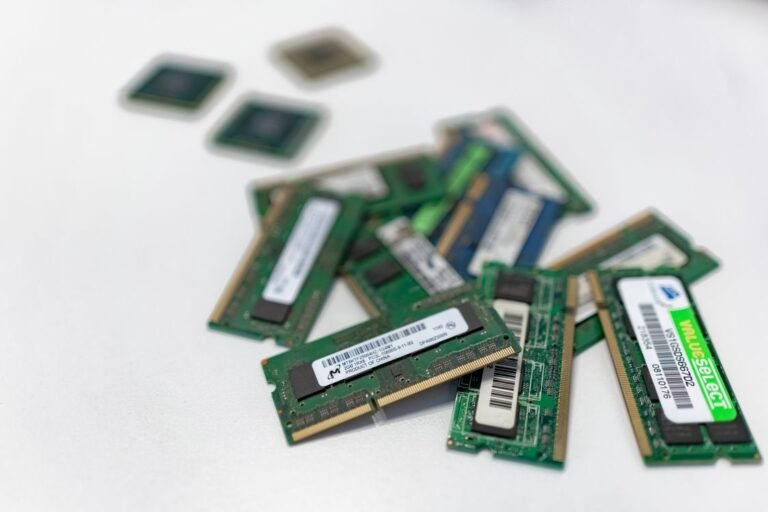
If you constantly sit above 90 percent memory with normal use, consider whether a RAM upgrade is possible. Many budget laptops accept one extra stick, and going from 4GB to 8GB is the best value upgrade after an SSD. Check your laptop model’s manual or a free tool like CPU-Z to see how many slots you have before buying anything.

Switch Your Power Plan to Best Performance — Carefully
Windows 11 defaults to Balanced power, which throttles your CPU to save battery. On a low-end desktop, or a laptop plugged into the wall, that throttling is pure lost speed.
Go to Settings > System > Power & battery, and set Power mode to Best performance. Your CPU will hold higher clock speeds, apps will open faster, and stutter in everyday tasks will drop. On a laptop running on battery, switch back to Balanced or Best power efficiency when you unplug — Best performance on battery will drain it noticeably faster, sometimes by a third.
On some laptops the manufacturer adds its own power modes in a companion app. If yours does, set it to its performance mode while plugged in too, and check that Windows is not fighting it with a conflicting plan.
Tame Windows Update and Background Activity
Windows Update is essential, but its default behavior — downloading and installing whenever it likes — can freeze a low-end PC mid-task. You cannot turn updates off safely, but you can schedule them.
Go to Settings > Windows Update and set Active hours to the times you actually use the PC, so restarts happen overnight. Turn on “Get the latest updates as soon as they’re available” only if your connection is fast; otherwise leave it off so feature updates arrive in the normal, slower rollout. Pause updates for a week only when you have a deadline, never permanently — an unpatched PC is a security risk, and security patches are the one thing you should never skip to save performance.
Also reduce background churn: in Settings > Privacy & security > Background apps, turn off background permission for apps you do not need live, and in Settings > System > Notifications, turn off notifications from apps that interrupt you. Every background task you remove is CPU time returned to the app in front of you.
Clean Up Disk Space and Defragment the Right Way
A nearly full drive slows Windows down. Windows needs free space for updates, virtual memory and temporary files — aim to keep at least 15 to 20 percent of your system drive free, or 20GB at minimum. If your PC has been getting slower month by month, also read how to stop Windows 11 from slowing down over time for the full maintenance checklist.
Run Disk Cleanup the modern way: go to Settings > System > Storage and click Temporary files. Check Temporary files, Recycle Bin, Downloads you no longer need and Previous Windows installation(s) if present, then click Remove files. Turn on Storage Sense on the same page so Windows clears temporary files automatically in future.
Then check what is actually taking space: Settings > System > Storage > Show more categories breaks down apps, documents and temporary files. Uninstall programs you have not used in months from Settings > Apps > Installed apps, sorting by size to find the big ones first. Old games, trial software and manufacturer bloatware are usually the largest wins.
One important distinction: if your drive is an HDD, run Optimize (the old defragmenter) monthly — search for “Defragment and Optimize Drives” and click Optimize on the HDD. If your drive is an SSD, never defragment it; Windows already runs TRIM automatically, and defragmenting an SSD only wears it out. The Optimize tool knows the difference and shows the correct media type, so check it before clicking anything.
Disable Features You Do Not Use
Windows 11 ships with features many low-end PC owners never touch, and several of them run in the background.
If you never play games, turn off Game Mode’s background services: Settings > Gaming > Game Mode can stay on (it helps when a game runs) but Xbox Game Bar (Settings > Gaming > Xbox Game Bar) can be switched off, along with background recording in Settings > Gaming > Captures. If you do play games on a budget machine, our guide on how to optimize Windows 11 for gaming covers the settings that matter most for frame rates. If you never use widgets, right-click the Widgets icon and remove it, or turn it off in Settings > Personalization > Taskbar. If you never use Copilot or Search highlights, turn off Search highlights in Settings > Privacy & security > Search settings — it stops Windows from downloading daily highlight content.
Also check Windows features: search for “Turn Windows features on or off” and uncheck things like Windows Media Player legacy components, Print to PDF extras you never use, or the old Internet Explorer mode if present. Do not uncheck anything you do not recognize — features like .NET Framework and Hyper-V may be needed by apps you install later. When in doubt, leave it alone.
Keep Drivers and Windows Updated — But Only the Right Drivers
Out-of-date graphics and chipset drivers are a genuine cause of slowness, especially on budget laptops where the manufacturer tuned the driver for that exact hardware. But random “driver updater” programs are a bad idea: they install wrong drivers and bundle junk.
Get drivers the safe way: check Windows Update > Advanced options > Optional updates for driver updates Microsoft has validated for your hardware, and visit your laptop or motherboard manufacturer’s support page once every few months for graphics and chipset updates. Install the graphics driver from Intel, AMD or NVIDIA directly if your manufacturer is slow to publish updates. Never install drivers from pop-up ads or third-party driver tools — on a low-end PC they cause more problems than they solve.
When Tweaks Are Not Enough: Cheap Upgrades That Matter
Software tweaks can recover a lot of speed, but hardware limits are real. If you have done everything above and the PC still struggles, these upgrades give the most speed per dollar, in order:
- SSD first. A 500GB SATA SSD costs less than most games and makes boot times drop from minutes to seconds. Clone your existing drive or do a clean install — either is worth it.
- RAM second. 8GB is the realistic minimum for Windows 11 in 2026; 16GB is comfortable. Check your maximum supported RAM before buying.
- A clean install last. If the PC has years of accumulated software, a clean Windows install (after backing up your files) removes every leftover driver, service and startup item at once. It is a weekend job, but it is the closest thing to a new PC without buying one.
If even an SSD and RAM do not make the machine usable for your work, that is honest information too: some 10-year-old budget laptops are simply below the line for modern Windows 11, and a refurbished business laptop with an 8th-generation Intel chip often costs less than upgrading the old one piece by piece.
Frequently Asked Questions
Will these tweaks make my PC as fast as a new one? No — and anyone who promises that is selling something. These changes remove wasted work so your existing hardware performs at its best. Expect a clearly faster, more responsive PC, not a new computer.
Is it safe to disable visual effects? Yes. Visual effects are cosmetic. Turning them off changes how windows look, not how Windows works, and you can turn them back on any time from the same Performance Options window.
Should I use a PC cleaner or optimizer app? No. Most “PC optimizer” apps do little that Windows cannot do itself, and many bundle ads or unwanted software. Disk Cleanup, Storage Sense and Task Manager cover everything a low-end PC needs.
How much RAM does Windows 11 really need on a low-end PC? Microsoft’s minimum is 4GB, but in practice 4GB means constant slowdowns with a browser open. 8GB is the realistic minimum for comfortable everyday use in 2026, and it is the upgrade that helps most after an SSD.
Does turning off transparency really help performance? On modern hardware, barely. On a low-end PC with old integrated graphics, yes — transparency and animations are rendered by the same weak GPU that is already struggling, so removing them frees it for actual work.
Conclusion
Optimizing Windows 11 for a low-end PC is not about one secret setting — it is about giving a small machine less to do. Turn off the visual effects, clean up startup apps, keep your browser’s memory under control, set Best performance while plugged in, schedule updates around your day, and keep enough disk space free. Do those six things and most budget PCs feel years younger, with no money spent and nothing risky changed.
If the machine still struggles after all of that, the honest next step is hardware: an SSD first, more RAM second, and a clean install if years of clutter have piled up. Start with the free tweaks today — you may find the upgrade you thought you needed can wait another year.