
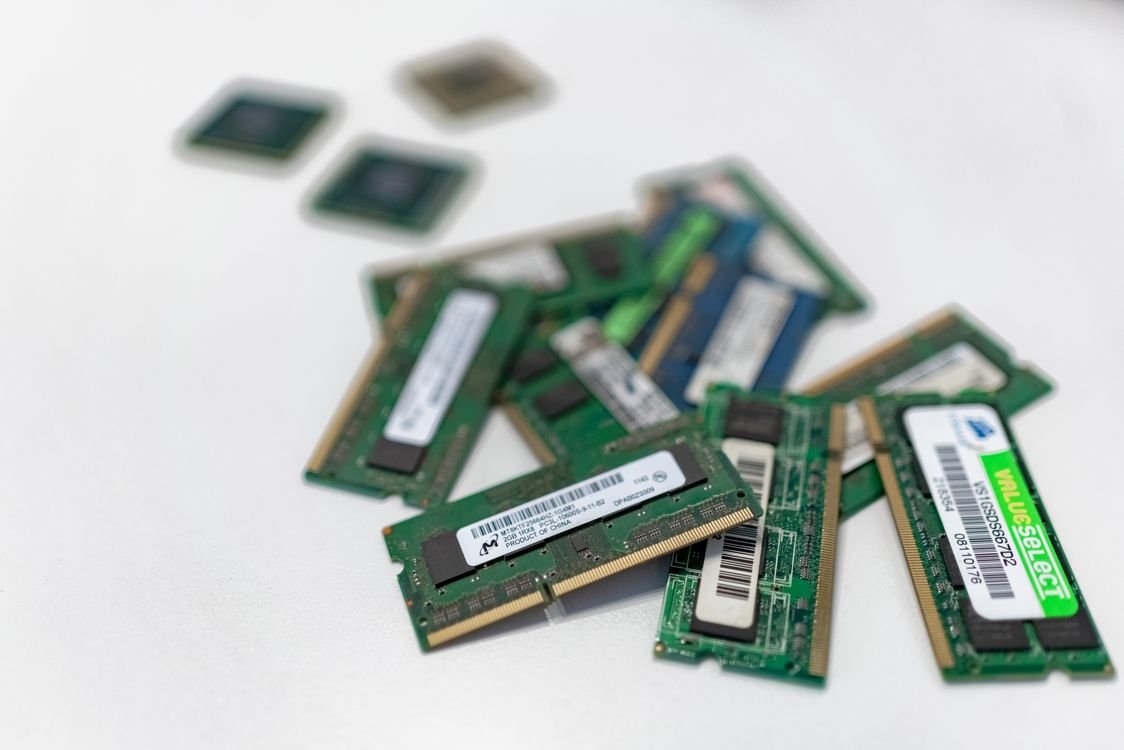
How to Free Up RAM on Windows 11
Learning how to free up RAM on Windows 11 is one of the fastest ways to make a slow PC feel new again. When your memory fills up, Windows starts moving data to the much slower hard drive or SSD, and everything stutters: apps take longer to open, browser tabs reload, and games drop frames. The good news is that most RAM problems are caused by apps and settings you can change in minutes, without buying anything.
In this guide, you will learn how to free up RAM on Windows 11 with nine proven methods, from closing hungry apps to disabling startup programs, and how to tell when the real answer is to add more memory. Everything here is safe, reversible, and works on Windows 11 Home and Pro.
What Is RAM and Why Does It Fill Up?
RAM, or random access memory, is your PC’s short-term memory. It holds the apps, browser tabs, and files you are using right now, so the processor can reach them instantly. When RAM fills up, Windows uses a page file on your storage drive as overflow, and because even a fast SSD is far slower than RAM, the whole PC feels sluggish.
RAM fills up for predictable reasons. Browsers are the biggest culprit: each tab, extension, and video uses memory, and a browser with twenty tabs can use several gigabytes on its own. Background apps are next: chat apps, cloud sync tools, game launchers, and updaters all sit in memory whether you use them or not. Then there are startup programs, which load into RAM every time you switch the PC on, and memory leaks, where a buggy app slowly uses more and more RAM the longer it runs. The methods below deal with each cause in turn.
Before you start, check how much RAM you are actually using. Press Ctrl + Shift + Esc to open Task Manager, click Performance, then Memory. You will see how much RAM is installed, how much is in use, and which apps are using the most. Click Processes, then the Memory column, to sort apps from hungriest to lightest. That list tells you exactly where to start.

1. Close Apps and Browser Tabs You Are Not Using
This is the simplest way to free up RAM on Windows 11, and it often frees the most. Look at Task Manager’s Processes tab and close the apps at the top of the memory list that you are not using. Browsers deserve special attention: close tabs you no longer need, and use your browser’s tab groups or bookmarks to save pages for later instead of keeping them open. Most browsers also have a memory saver feature that puts inactive tabs to sleep, freeing their RAM until you click the tab again. Turn it on in your browser settings.
Video calls, games, and creative apps such as video editors use the most memory, so close them completely when you are done, rather than leaving them minimized. Minimizing an app does not free its RAM. If you work with many tabs, consider a browser extension that suspends inactive tabs, or use separate browser windows for separate tasks and close whole windows when a task is finished.
2. Disable Startup Programs You Do Not Need
Many apps add themselves to startup, so they load into RAM before you even open them. Over time, this can add several hundred megabytes of memory use to every boot. To fix it, open Task Manager, click Startup apps, and look at the list. Each entry shows its startup impact: high, medium, or low.
Disable anything with a high impact that you do not need immediately after logging in, such as game launchers, chat apps, and update helpers. Right-click the entry and choose Disable. This does not uninstall the app; it simply stops it from starting with Windows, and you can still open it normally whenever you want. Keep your security software, cloud sync if you rely on it, and audio drivers enabled, and disable the rest. Restart your PC after making changes, then check Task Manager again to see how much memory you saved.
3. Stop Background Apps From Running
Even apps you never open can use RAM in the background. Windows 11 lets you control this per app. Open Settings, go to Apps, then Installed apps, and click the three dots next to an app you rarely use. Choose Advanced options, and under Background apps permissions, change the setting from Always to Power optimized or Never. Do this for apps such as games, shopping apps, and social media apps that you open only occasionally.
Also check the system tray in the bottom-right corner of the taskbar. Every icon there is an app running in the background. Right-click the ones you do not need and choose Exit or Quit. Cloud storage apps, printer helpers, and hardware utilities are common residents. If you are not sure what an app does, leave it alone, and check Task Manager’s memory list first: if it uses very little RAM, removing it will not help much.
4. Uninstall Apps You Never Use
Apps you never open still use RAM through background services, updaters, and startup entries. A quick cleanup helps. Open Settings, go to Apps, then Installed apps, and sort the list by size or by install date. Uninstall games you finished, old trial software, and apps that came preinstalled and you never touched. Click the three dots next to an app and choose Uninstall.
Be careful with anything you do not recognize: search its name first, because some entries are drivers or support software that your PC needs. If you are unsure, disable its startup entry instead of uninstalling it, which is reversible. After uninstalling a few large apps, restart the PC and check your memory use in Task Manager to see the improvement.
5. Restart Your PC Regularly
Windows and apps leak small amounts of memory over time, and a restart is the simplest way to clear it all. If you usually put your laptop to sleep instead of shutting it down, memory use creeps up day by day, and the PC gradually slows down. A full restart once a week, or whenever the PC feels sluggish, frees RAM completely and clears temporary files.
Note that Windows 11’s Fast Startup feature means a shutdown is not always a full restart. To get a true restart, click Start, then the power icon, then Restart, rather than Shut down. If your PC has been running for weeks, a single restart can free a gigabyte or more of RAM immediately.
6. Adjust Visual Effects and Transparency
Windows 11’s animations, transparency, and shadows look nice, but they use memory and graphics resources. On a PC with 4 GB or 8 GB of RAM, turning some of them off frees memory and makes the interface feel snappier. Open Settings, go to Accessibility, then Visual effects, and turn off Transparency effects and Animation effects.
For a bigger change, open the classic performance settings: press Windows key + R, type sysdm.cpl, press Enter, go to the Advanced tab, click Settings under Performance, and choose Adjust for best performance, or select Custom and keep only the effects you like. The desktop will look plainer, but windows will open faster, which is a worthwhile trade on a low-memory PC.
7. Increase Virtual Memory and Try ReadyBoost
When physical RAM runs out, Windows uses virtual memory, a page file on your storage drive. If the page file is too small, Windows cannot juggle memory well. In most cases, Windows manages the page file automatically, and you should leave it alone. If you have a small SSD and a nearly full drive, freeing disk space helps, because the page file needs room to grow.
ReadyBoost is an older feature that uses a USB flash drive as extra cache. On a modern PC with an SSD and 8 GB or more of RAM, it makes little difference, and Microsoft does not recommend it. On an old laptop with a slow hard drive and 4 GB of RAM, it can help a little. To try it, plug in a fast USB drive, open File Explorer, right-click the drive, choose Properties, go to the ReadyBoost tab, and follow the prompts. It is a free experiment, but do not expect miracles.
8. Scan for Malware and Fix Memory Leaks
Malware and unwanted software can use large amounts of RAM in the background, and they are easy to miss because they do not appear as apps you opened. Run a full scan with Windows Security: open Settings, go to Privacy & security, then Windows Security, then Virus & threat protection, and choose Full scan. Remove anything it finds, then restart and check Task Manager again.
A memory leak is different: a normal app, often a browser or a driver, slowly uses more RAM the longer it runs, until the PC crawls. You can spot one in Task Manager by watching the Memory column over an hour: if one app keeps climbing while you are not using it more, that app is leaking. Updating the app or its driver usually fixes it, and restarting the app frees the leaked memory immediately. If the leak comes from a driver, check the manufacturer’s website for an update.
9. Know When to Add More RAM
Sometimes the honest answer is that you need more memory. If Task Manager shows memory usage above 85 percent during your normal work, even after you close apps and disable startup programs, your PC is running out of room. If you regularly work with large spreadsheets, video editing, virtual machines, or dozens of browser tabs, 8 GB is often not enough, and 16 GB makes a clear difference.
Before buying, check how much RAM your laptop can take and whether it is upgradeable. Many thin laptops have soldered memory that cannot be changed, while most desktops and larger laptops accept standard modules. If you are unsure how much memory you need in the first place, our guide on how much RAM you really need in 2026 explains the right amount for gaming, work, and everyday use. And if your PC is slow for other reasons too, our guide on how to stop Windows 11 from slowing down over time covers the other fixes that work alongside freeing up RAM.
Frequently Asked Questions
How much RAM should Windows 11 use at idle? On a typical PC with 8 GB of RAM, Windows 11 itself uses about 2 to 3 GB at idle, with the rest available for apps. With 16 GB, idle use is a little higher, because Windows uses spare memory for caching. High idle use is not a problem on its own; what matters is whether you have free memory left when you open your apps.
Is it safe to disable startup programs? Yes, disabling a startup program is safe and reversible. It only stops the app from launching when Windows starts; you can still open it normally. Keep your security software enabled, and if you are unsure about an entry, search its name before disabling it.
Does freeing up RAM make my PC faster? It does when RAM is the bottleneck. If Task Manager shows memory use above 85 percent while your PC feels slow, freeing RAM will help noticeably. If memory use is low and the PC is still slow, the cause is more likely the storage drive, the processor, or a background task.
Should I use a RAM cleaner app? No. RAM cleaner apps promise to free memory, but Windows already manages memory well, and these apps can make things worse by forcing Windows to reload data it had cached. The manual methods in this guide are safer and more effective.
Conclusion
To free up RAM on Windows 11, start with the biggest wins: close apps and browser tabs you are not using, disable startup programs, and stop background apps you do not need. Then restart regularly, uninstall what you never use, and tone down visual effects if your PC has little memory. Check Task Manager before and after, and you will see the difference in numbers, not just in feel. If memory still sits above 85 percent during normal work, that is your sign to consider a RAM upgrade rather than more tweaks. Used together, these nine methods keep Windows 11 fast without spending anything.
Further reading: Microsoft’s Windows help and learning pages cover memory, performance, and troubleshooting for Windows 11.





One Comment