
How to Make Windows 11 Boot Faster

If you want to know how to make Windows 11 boot faster, you are not alone. A slow startup is one of the most frustrating Windows problems, because it wastes time every morning, delays your first meeting, and makes a good computer feel old before its time. The good news is that most slow boots are caused by a small number of fixable problems: too many startup programs, a hard drive that is too slow, outdated drivers, or a Windows setting that is not helping as much as it should. In this guide, you will learn how to make Windows 11 boot faster step by step, using only safe, built-in tools and settings. You do not need to buy new hardware to see a difference, although we will explain when an upgrade to a solid-state drive is the one change that matters most.
Before you change anything, it helps to know how long your computer actually takes to boot. Time it from the moment you press the power button until you can open a program and use it normally. A modern Windows 11 computer with a solid-state drive should reach a usable desktop in about 20 to 40 seconds. A computer that takes two minutes or more has a problem worth fixing. Keep a note of your starting time, so you can compare it after each change and see which fix helped most. For a quick check of your system, visit the InsuraBytes free tools hub and use the device info tool to confirm your Windows version, storage type, and memory.
Turn Off Unnecessary Startup Programs
The single most effective way to make Windows 11 boot faster is to stop programs you do not need from starting with Windows. Many programs add themselves to startup when you install them, including chat apps, cloud storage, music players, and update helpers. Each one adds a few seconds, and together they can add a minute or more. To fix this, press Ctrl, Shift, and Escape to open Task Manager, then click Startup apps in the left-hand menu. You will see a list of programs, their publisher, and their startup impact, rated Low, Medium, or High. Disable anything you do not need immediately after you sign in, such as a game launcher, a music app, or a program you only use occasionally. Right-click on the program and choose Disable. Do not disable your antivirus, your audio driver, or a program you rely on for work, unless you are sure you can open it manually later.
After you disable a few startup programs, restart your computer and time the boot again. Most people see a clear improvement from this one change alone. If you are unsure about a program, search for its name online before you disable it, or leave it enabled and focus on the programs with High impact first. You can always re-enable a program later from the same Startup apps page, so this change is safe and reversible. It is also a good idea to repeat this check every few months, because new programs can add themselves to startup when you install them, and a clean startup list is one of the best habits for a fast computer.
Turn On Fast Startup
Fast Startup is a Windows feature that helps your computer start more quickly after a shutdown, by saving some system information to a file when you turn the computer off. To check it, open Control Panel, go to Hardware and Sound, then Power Options, then Choose what the power buttons do. Click Change settings that are currently unavailable, then make sure Turn on fast startup is checked. If you do not see the option, your computer may not support hibernation, or the setting may be managed by your device manufacturer. Fast Startup usually helps, but it can occasionally cause problems after a major Windows update or a driver change, because it does not perform a full shutdown. If your computer behaves strangely after you turn it on, try turning Fast Startup off, restarting, and then turning it back on again.
It is important to understand the difference between Fast Startup, Sleep, and Restart. Sleep keeps your programs open and uses a small amount of power, so you can resume quickly, but it is not the same as a fresh boot. Restart performs a full shutdown and startup, and it is the best way to apply Windows updates and clear temporary problems. If you use Fast Startup, try to restart your computer at least once a week, so Windows can complete updates and clear its memory. That simple habit can prevent many slow-boot problems from building up over time.
Keep Windows and Drivers Updated
Outdated Windows files and drivers can slow down your boot, because Windows may wait for a device that is not responding correctly, or it may load an old driver that is not optimized for Windows 11. To update Windows, open Settings, go to Windows Update, and click Check for updates. Install any available updates, then restart your computer when asked. Windows updates often include performance improvements and fixes for startup problems, so staying up to date is one of the easiest ways to make Windows 11 boot faster.
Drivers are just as important. Your graphics driver, storage driver, and chipset driver all affect how quickly Windows can load. The safest way to update them is through Windows Update, or through the support website of your computer manufacturer, such as Dell, HP, Lenovo, or ASUS. Download drivers only from the manufacturer or from the device maker, such as Intel, AMD, or NVIDIA, and avoid third-party driver updater tools that promise to fix your computer, because many of them install unwanted software. After you update a driver, restart your computer and check whether your boot time has improved.
Free Up Disk Space and Check Your Storage
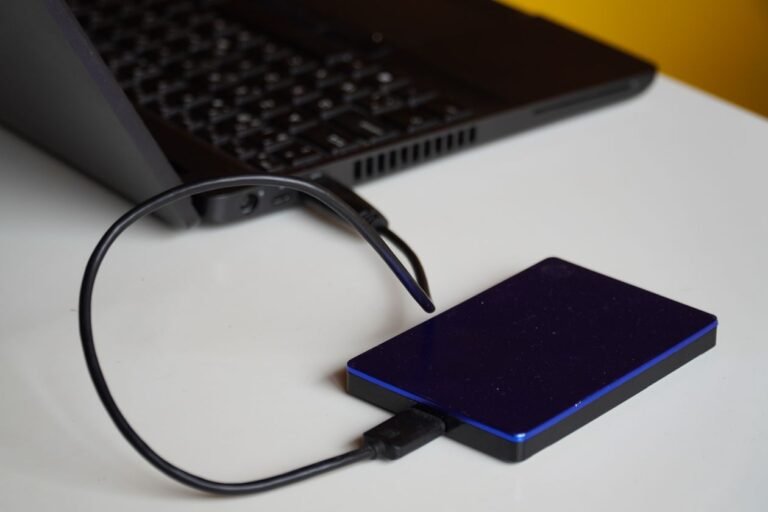
A full hard drive can slow down Windows 11 boot, because Windows needs free space to create temporary files, load updates, and manage virtual memory. As a rule, keep at least 15 to 20 percent of your main drive free, or at least 20 gigabytes on a smaller drive. To free space, open Settings, go to System, then Storage, and use the cleanup recommendations to remove temporary files, old Windows update files, and items in the Recycle Bin. You can also turn on Storage Sense, which automatically cleans temporary files on a schedule. Uninstall programs you no longer use from Settings, then Apps, then Installed apps, and move large personal files, such as videos, to an external drive or cloud storage if you need more room.

Your storage type matters even more than free space. If your computer still uses a traditional hard disk drive, or HDD, upgrading to a solid-state drive, or SSD, is the fastest way to make Windows 11 boot faster. An SSD can cut boot time from two minutes to less than 30 seconds, and it also makes programs open much faster. If you already have an SSD, make sure it is healthy and that Windows is installed on it, not on a slower secondary drive. You can check your drive type in Task Manager, under Performance, then Disk. If an upgrade is not possible right now, focus on the software fixes in this guide, which can still make a real difference.
Disable Visual Effects You Do Not Need
Windows 11 includes animations, transparency, and other visual effects that make the interface look smooth, but they can slow down older or less powerful computers. To reduce them, open Settings, go to Accessibility, then Visual effects, and turn off Transparency effects and Animation effects. You can also search for Adjust the appearance and performance of Windows in the Start menu, open Performance Options, and choose Adjust for best performance, or select Custom and turn off only the effects you do not need, such as animations and shadows. This will make Windows look a little plainer, but it can make the desktop feel more responsive, especially on a computer with limited memory or an older graphics card.
Visual effects are a matter of preference, so try the change for a few days before you decide. If you have a modern computer with plenty of memory, the difference may be small, and you may prefer to keep the effects on. If you have an older laptop, the difference can be noticeable, especially when you open the Start menu or switch between windows. You can always turn the effects back on from the same settings page, so this is a safe experiment.
Check for Malware and Unwanted Software
Malware and unwanted software can slow down your boot, because they may run in the background, use your processor and memory, and even try to connect to the internet before you have finished signing in. Run a full scan with Microsoft Defender, which is built into Windows 11, by opening Windows Security, then Virus and threat protection, then Scan options, and choosing Full scan. This scan can take an hour or more, so run it when you do not need your computer. If Defender finds a threat, follow its instructions to remove it, then restart your computer.
You should also check for programs you did not install yourself, especially toolbars, optimizers, and free utilities that may have come bundled with another download. Uninstall anything you do not recognize or do not need, and be careful when you install new software in future, by choosing Custom install and declining extra offers. A clean computer boots faster, runs more reliably, and is safer to use, so this check is worth doing even if you do not think you have malware.
Use a Clean Boot to Find the Problem
If your computer still boots slowly after you try the fixes above, a clean boot can help you find the cause. A clean boot starts Windows with only the essential Microsoft services and no third-party startup programs, so you can see whether a third-party program is slowing things down. To perform a clean boot, type msconfig in the Start menu, open System Configuration, go to the Services tab, check Hide all Microsoft services, then click Disable all. Then go to the Startup tab, open Task Manager, and disable all startup programs. Restart your computer and time the boot. If it is much faster, the problem is one of the programs or services you disabled.
To find the specific program, re-enable half of the services and startup programs, restart, and test again. Repeat this process until you find the program that causes the slowdown, then disable it permanently or update it. When you finish, return to System Configuration and choose Normal startup, so Windows returns to its usual settings. A clean boot is a diagnostic tool, not a permanent setting, so do not leave your computer in clean boot mode for daily use.
When to Consider a Hardware Upgrade
Software fixes can only do so much if your hardware is very old or very limited. If your computer has only 4 gigabytes of memory, upgrading to 8 or 16 gigabytes can make a noticeable difference, especially if you use many browser tabs or large programs. If your computer still uses a hard disk drive, upgrading to an SSD is the most effective upgrade for boot time, as explained above. If your processor is more than eight years old, even a fast SSD may not make Windows 11 boot as quickly as a modern computer, but it will still help.
Before you buy any hardware, check whether your computer can be upgraded, because some laptops have soldered memory or a sealed case. Check your manufacturer support page, or ask a reputable repair shop for advice. Also, make sure your computer meets the official Windows 11 requirements, because an unsupported computer may not receive updates or may run slowly. In many cases, a modest upgrade, combined with the software fixes in this guide, is enough to give an older computer a useful second life.
Conclusion
Learning how to make Windows 11 boot faster is mostly about removing what you do not need, keeping what you do need updated, and giving Windows enough free space and a fast drive to work with. Start with the biggest wins: turn off unnecessary startup programs, turn on Fast Startup, update Windows and drivers, and free up disk space. Then check for malware, reduce visual effects if needed, and use a clean boot to find any stubborn problem. If your computer still uses a hard disk drive, consider an SSD upgrade, because it is the one hardware change that can transform boot time.
Time your boot before and after these changes, and keep the habits that help: review startup programs every few months, restart your computer weekly, and keep Windows updated. For more ways to keep your PC running well, visit the InsuraBytes tools hub and try the free utilities there. With a few minutes of work, your Windows 11 computer can start faster, feel newer, and be ready when you are.
Frequently Asked Questions
How long should Windows 11 take to boot? A modern Windows 11 computer with a solid-state drive should reach a usable desktop in about 20 to 40 seconds. A computer with a hard disk drive may take 60 seconds or more, and a computer that takes more than two minutes likely has a startup, driver, or storage problem worth fixing.
Does Fast Startup make a big difference? Fast Startup can help after a shutdown, especially on computers with a hard disk drive, but it does not replace a proper restart. Restart your computer at least once a week, so Windows can apply updates and clear temporary issues.
Will disabling startup programs break anything? No, if you disable only programs you recognize and do not need at startup. Your antivirus and essential drivers should stay enabled, and you can re-enable any program later from Task Manager, then Startup apps.
Photo credits: Top and in-body photos are royalty-free photos from Pexels.



One Comment