Best Free Drawing Apps for Windows in 2026
The best free drawing apps for Windows in 2026 prove that you do not need an expensive subscription to make good art on a PC. Whether you sketch with a mouse, draw with a graphics tablet, or paint with a touchscreen pen, there is a free app that fits the way you work, from quick doodles and comics to finished illustrations and concept art.
In this guide, we compare seven of the best free drawing apps for Windows, explain what each one does best, and help you choose the right tool for your style and skill level. Every app here is free for personal use, runs on Windows 11, and can be downloaded from its official website. No trials, no watermarks, and no credit card are needed for the features we describe.
What to Look for in a Free Drawing App
Before the reviews, it helps to know what separates a good free drawing app from a frustrating one. The best free drawing apps for Windows share five qualities. First, brush quality: the brushes should feel natural, with pressure sensitivity that makes lines thinner or thicker as you press harder, and a good range of pencils, inks, watercolors, and markers. Second, layers: you should be able to draw on separate layers, so you can sketch, ink, and color without ruining the work underneath.
Third, canvas and file support: the app should open and save common formats such as PNG, JPEG, and PSD, and handle large canvases without slowing down. Fourth, a friendly interface: the tools you need should be easy to reach, and the app should not hide basic features behind confusing menus. Fifth, stability: a drawing app that crashes loses your work, so autosave and crash recovery matter more here than in almost any other kind of software. Keep these five tests in mind as you read the reviews, because the right app for a comic artist is not always the right app for a beginner with a mouse.
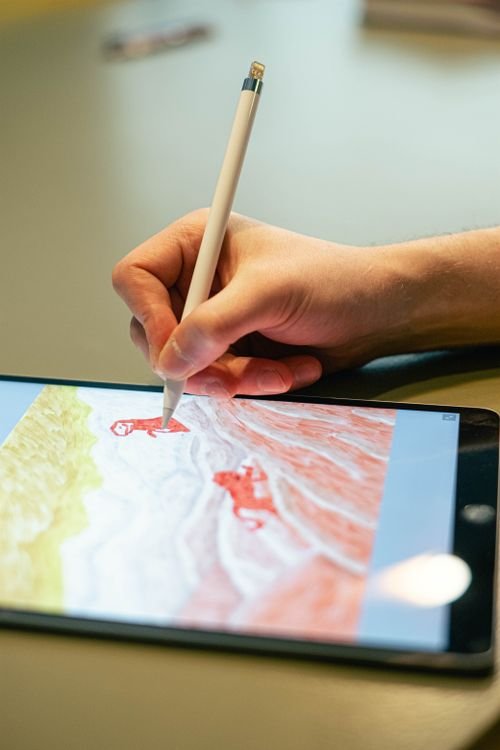
1. Krita: The Best Free Drawing App for Serious Artists
Krita is the strongest all-round choice among the best free drawing apps for Windows, and it is the one most professional artists recommend first. It is free and open source, built by artists, and packed with the tools that digital painting actually needs: more than a hundred brushes, stabilizers that smooth shaky lines, layer styles, blending modes, and support for large canvases and high-resolution files.
Krita shines for illustration, comics, and concept art. Its brush engines include watercolor, ink, and textured brushes that feel closer to real media than most free apps manage, and its animation tools let you create frame-by-frame animations in the same program. The interface is customizable, with workspaces for painting, animation, and comic work, although beginners may find it busy at first. If you are serious about drawing on Windows and you want one free app that can grow with you for years, start with Krita.
2. MediBang Paint Pro: The Best Free Drawing App for Comics and Manga
MediBang Paint Pro is built for comics and manga, and it is one of the best free drawing apps for Windows if panels, speech bubbles, and screentones are part of your work. It includes comic panel tools, a large library of free tones and backgrounds, and cloud saving that lets you start a page on your PC and continue on a tablet or phone.
The app is light and fast, which makes it a good choice for older laptops, and its brush set covers the essentials for inking and coloring without overwhelming you. Collaboration features let two artists work on the same project, and the interface is simpler than Krita’s, so beginners get going faster. The trade-off is that MediBang is less powerful for heavy digital painting, and some of its extra materials require a free account. For manga, webtoons, and comic strips, it is hard to beat.
3. FireAlpaca: The Best Free Drawing App for Beginners
FireAlpaca is the friendliest app on this list, and the best free drawing app for Windows if you are just starting out. It opens fast, uses very little memory, and keeps the interface simple: brushes, layers, and a color picker are all within easy reach. Despite that simplicity, it includes the essentials, such as pressure sensitivity, onion-skin animation, perspective guides, and a 3D perspective tool for drawing backgrounds.
FireAlpaca runs well on almost any PC, including old laptops that struggle with heavier apps, and it is a good first app for children and students. Its brush selection is smaller than Krita’s, and it lacks some advanced features such as layer styles and CMYK color support, but for sketching, character design, and learning digital art, that simplicity is a feature, not a flaw. Many artists keep FireAlpaca installed as a quick sketching tool even after moving on to heavier apps.
4. Autodesk Sketchbook: The Best Free Drawing App for Sketching
Autodesk Sketchbook, now free for everyone, is designed around one idea: sketching should feel like sketching. Its interface fades away while you draw, leaving a clean canvas, a small set of natural brushes, and a lag-free pen response that feels closer to paper than most apps. It supports layers, symmetry tools for drawing faces and mandalas, and a predictive stroke feature that tidies up shaky lines.
Sketchbook works well with a graphics tablet or a touchscreen pen, and it is a strong choice for product design, storyboarding, and quick concept sketches. It is less suited to finished illustration than Krita, because its brush and layer features are simpler, and it has fewer tools for comics or animation. But if your priority is a fast, pleasant sketching experience, Sketchbook deserves a place on your PC.
5. GIMP: The Best Free Drawing App for Photo-Based Art
GIMP is best known as a free photo editor, but it is also one of the most capable free drawing apps for Windows when your art starts from photographs. It supports layers, masks, filters, and a wide range of brushes, and its strong selection tools make it ideal for photo manipulation, textures, and collage work that pure drawing apps handle poorly.
As a drawing app, GIMP has real strengths: it opens PSD files, supports graphics tablets, and can be extended with plugins and custom brushes. Its weaknesses are its interface, which feels dated and can confuse beginners, and its brush engines, which do not feel as natural as Krita’s for pure painting. If you already use GIMP for editing photos, it is worth learning its drawing tools too. Our guide to the best free photo editing software for Windows in 2026 covers GIMP alongside the other leading free editors.
6. Inkscape: The Best Free Drawing App for Vector Art
Inkscape is different from the other apps here, because it draws with vectors rather than pixels. That means your lines and shapes stay sharp at any size, which makes Inkscape the best free drawing app for Windows for logos, icons, diagrams, and illustrations that need to be resized or printed. It is free and open source, and it saves files in the SVG format that the web uses.
Vector drawing feels different from sketching: you place points and curves, then adjust them, rather than painting freely. That makes Inkscape less natural for loose sketching, but far better for clean, precise artwork. If you design logos, make stickers, or create graphics for a website, Inkscape is the tool to learn. Pair it with a raster app such as Krita, and you cover almost every kind of digital art for free.
7. Artweaver Free: The Best Free Drawing App for Realistic Painting
Artweaver Free aims to imitate real paint, and it is one of the best free drawing apps for Windows for artists who like oils, acrylics, and pastels. Its brushes simulate bristles, blending, and texture, and it includes paper textures, palette knives, and a realistic color mixer. The result can look surprisingly close to traditional media on screen.
Artweaver Free is lighter and simpler than Krita, with a clear interface and support for layers and PSD files, although the free version limits some features, such as the number of layers and the maximum canvas size. It is a good choice for painters who want a traditional feel without a steep learning curve. If you try it and like the realistic brushes, the paid version removes the limits, but the free version is enough to learn with.
Best Free Drawing Apps for Windows at a Glance
| App | Best for | Style | Learning curve |
|---|---|---|---|
| Krita | Serious artists | Painting, comics | Medium |
| MediBang Paint Pro | Comics and manga | Comics, webtoons | Easy |
| FireAlpaca | Beginners | Sketching | Easy |
| Autodesk Sketchbook | Sketching | Sketching, design | Easy |
| GIMP | Photo-based art | Editing, textures | Medium |
| Inkscape | Vector art | Logos, icons | Medium |
| Artweaver Free | Realistic painting | Oil, pastel | Easy |
How to Choose the Right Free Drawing App
Start with what you want to make. For painting and illustration, choose Krita. For comics and manga, choose MediBang Paint Pro. For learning digital art, choose FireAlpaca. For logos and icons, choose Inkscape. For realistic paint effects, choose Artweaver Free. There is no single best free drawing app for Windows, because the right answer depends on your art.
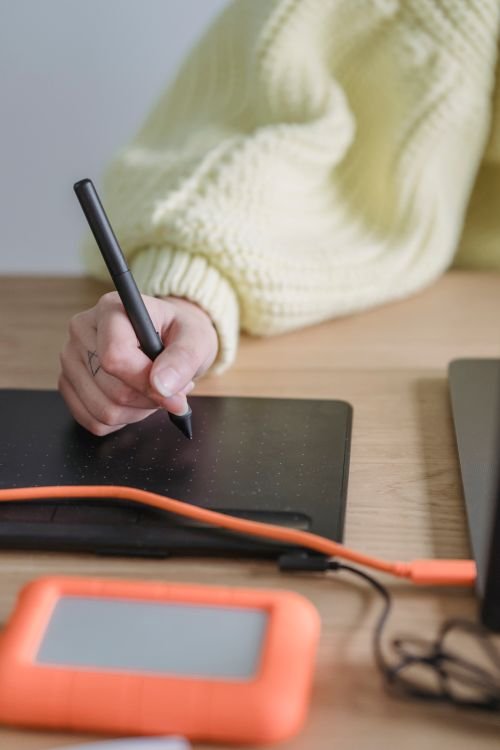
Next, consider your hardware. A graphics tablet makes a bigger difference than the app you choose, because pressure sensitivity is what makes digital lines feel natural. Even an inexpensive tablet transforms the experience, and every app on this list supports one. If you only have a mouse, choose an app with good line stabilizers, such as Krita or FireAlpaca, which smooth out the wobble that a mouse creates. On a touchscreen laptop, Sketchbook and MediBang feel the most natural.
Finally, give each app a real try. Install two at most, draw the same picture in both, and see which interface stays out of your way. An app you enjoy opening is the one you will practice with, and practice matters far more than features. If you use AI tools for reference images or ideas, our guide to the best free AI image generators for Windows explains how to create reference art for free, which can help when you are stuck for a subject.
Tips for Better Drawing on Windows
A few habits make any free drawing app work better. First, install your tablet driver from the manufacturer’s website, not just from Windows Update, and test pressure sensitivity in the app’s brush settings before you start a serious piece. Second, save your work often and turn on autosave, because even the most stable app can crash. Save in the app’s own format while you work, and export a PNG or JPEG only when you share the finished piece.
Third, learn keyboard shortcuts for undo, brush size, and switching layers. They save more time than any feature. Fourth, keep your canvas at a high resolution from the start: it is easy to shrink a finished drawing, but impossible to add detail to a small one. Finally, use reference images. Drawing from a photo or a real object improves your work faster than drawing from memory, and a second monitor or a tablet is ideal for keeping the reference visible while you draw.
Frequently Asked Questions
What is the best free drawing app for Windows 11? Krita is the best free drawing app for most Windows 11 users because it is free, open source, and powerful enough for professional illustration, comics, and animation. Beginners may prefer FireAlpaca, and comic artists may prefer MediBang Paint Pro.
Do I need a graphics tablet to draw on Windows? No, you can draw with a mouse or a touchscreen, but a graphics tablet makes a large difference. Pressure sensitivity lets you vary line thickness naturally, and even an inexpensive tablet improves your control. All the free drawing apps in this guide support graphics tablets.
Are free drawing apps really free? Yes. Krita, MediBang Paint Pro, FireAlpaca, Autodesk Sketchbook, GIMP, Inkscape, and Artweaver Free are all free for personal use, with no watermarks on your work. Some offer optional paid versions or extra materials, but the core drawing features cost nothing.
Can I use these apps for commercial work? In most cases, yes. The apps themselves are free to use, and the art you create is yours. Always check the license of any brushes, textures, or materials you download, because those can have separate terms.
Conclusion
The best free drawing apps for Windows in 2026 cover every kind of digital art: Krita for serious painting, MediBang for comics, FireAlpaca for beginners, Sketchbook for sketching, GIMP for photo-based work, Inkscape for vector art, and Artweaver Free for realistic painting. Pick the app that matches what you want to make, pair it with a graphics tablet if you can, and give yourself time to learn it. The tools are free, so the only investment is your practice, and that is what turns a good app into good art.
Further reading: The official Krita website offers free downloads, documentation, and tutorials for Windows.