

Best Free Video Editing Software for Windows in 2026

Finding the best free video editing software for Windows in 2026 is easier than ever, because several genuinely powerful editors are now free, with no watermark, no trial countdown, and no need for a subscription. Whether you want to cut family videos, start a YouTube channel, edit school projects, or create short clips for social media, you no longer need to spend hundreds of dollars to get clean cuts, smooth transitions, titles, and good audio. The challenge is choosing the right tool, because free editors range from simple trimmers to professional programs that can handle multi-camera projects and colour grading.
This guide compares the strongest free options for Windows, explains who each one suits, and helps you avoid the traps that make some so-called free editors frustrating. Some free editors limit exports, add watermarks, or lock important features behind a paywall. The programs below are chosen because their free versions are genuinely usable for real projects. You will also learn how much computer power you need, how to organise your footage, and how to export a video that looks sharp on YouTube, TikTok, or a television.
What Makes a Free Editor Worth Using?
A good free editor should let you cut and arrange clips on a timeline, add transitions and text, adjust audio levels, and export in high definition without a watermark. It should also be stable on ordinary Windows computers, not only on expensive workstations. Some editors are free because they are open source, built by a community and supported by donations. Others are free versions of professional software, where the company hopes some users will later pay for advanced features. Both models can work well, as long as the free version does not cripple the basics.
Pay attention to export options before you invest hours in a project. Check whether the editor exports 1080p or 4K video, whether it supports the formats YouTube and other platforms prefer, and whether it adds a watermark. Also check whether it needs an internet connection or an account to export. A program that works offline and saves your project locally gives you more control and privacy. Finally, look at tutorials and community support. A powerful editor with no guides can feel overwhelming, while a well-documented editor helps you learn quickly.
DaVinci Resolve: The Professional Free Choice
DaVinci Resolve, from Blackmagic Design, is the most powerful free video editor available for Windows, and it is used for real film and television work. Its free version includes professional editing, colour grading, visual effects, and audio mixing tools, with no watermark and no time limit. If you want to learn video editing properly, or you plan to edit longer projects, Resolve is the best long-term choice. It supports 4K editing, multi-track timelines, and a huge range of effects and transitions.
The trade-off is that Resolve needs a reasonably capable computer and some patience to learn. Its interface has several workspaces, called pages, for editing, colour, effects, and audio, which can confuse beginners at first. A computer with at least 16 GB of RAM, a dedicated graphics card, and fast storage will run it much more smoothly than an older laptop with 8 GB of RAM. If your computer meets those requirements, start with Resolve’s built-in tutorials and a short practice project. You will soon appreciate why professionals trust it, and you will not outgrow it quickly.
CapCut for Windows: Fast and Beginner-Friendly
CapCut is a popular choice for short-form video, and its Windows version is well suited to TikTok, Reels, Shorts, and YouTube videos. It offers a clean timeline, templates, auto-captions, background removal, and a library of effects and music. Beginners often find CapCut easier than Resolve, because its tools are clearly labelled and its templates do much of the styling work. If your main goal is to produce polished short videos quickly, CapCut is hard to beat.
CapCut does require an account for some features, and some templates and effects are part of a paid plan. The free version is still very usable, but check each effect before you rely on it for a project. It also works best with an internet connection, because many templates and media assets are downloaded. For longer documentaries or detailed colour work, Resolve remains stronger, but for weekly social videos, CapCut’s speed and simplicity are a genuine advantage.
OpenShot and Shotcut: Simple Open-Source Editors
OpenShot and Shotcut are free, open-source editors that work well for beginners and for computers that cannot run Resolve smoothly. OpenShot has one of the simplest timelines of any free editor: drag clips in, trim them, add titles and transitions, and export. It is a good first editor for school projects, family videos, and simple YouTube videos. Shotcut is slightly more advanced, with support for many formats, filters, and 4K video, but it still avoids the complexity of a professional studio program.
Both editors are completely free, with no watermark and no paid tier hiding essential features. They also work offline and save projects locally, which is useful for privacy and for computers without a fast connection. Their weakness is performance and polish: they can feel slower than Resolve or CapCut on large projects, and their effects libraries are smaller. Still, if you have an older Windows computer, or you want a straightforward editor without an account, OpenShot and Shotcut are excellent starting points.
Clipchamp and Microsoft’s Built-In Options
Windows 11 includes Clipchamp, Microsoft’s video editor, which is a solid choice for quick edits, slideshows, and social videos. Clipchamp offers templates, stock media, text overlays, and simple trimming and splitting tools, all in a clean interface that beginners can learn in minutes. Because it is built into Windows, it is convenient for users who do not want to install a large program. It is also useful for turning photos into a video, adding music, and creating a presentation video for work or school.
Clipchamp’s free tier has limits, however. Some premium stock assets, filters, and export options require a paid plan, and 4K export is not part of the free version. For short 1080p projects, those limits rarely matter, but for serious creators they can become frustrating. Use Clipchamp when speed matters more than advanced control, and move to Resolve or Shotcut when you need deeper colour, audio, or effects work. The Photos app can also trim and merge very simple clips, but it is not a replacement for a real editor.
Choosing the Right Editor for Your Computer
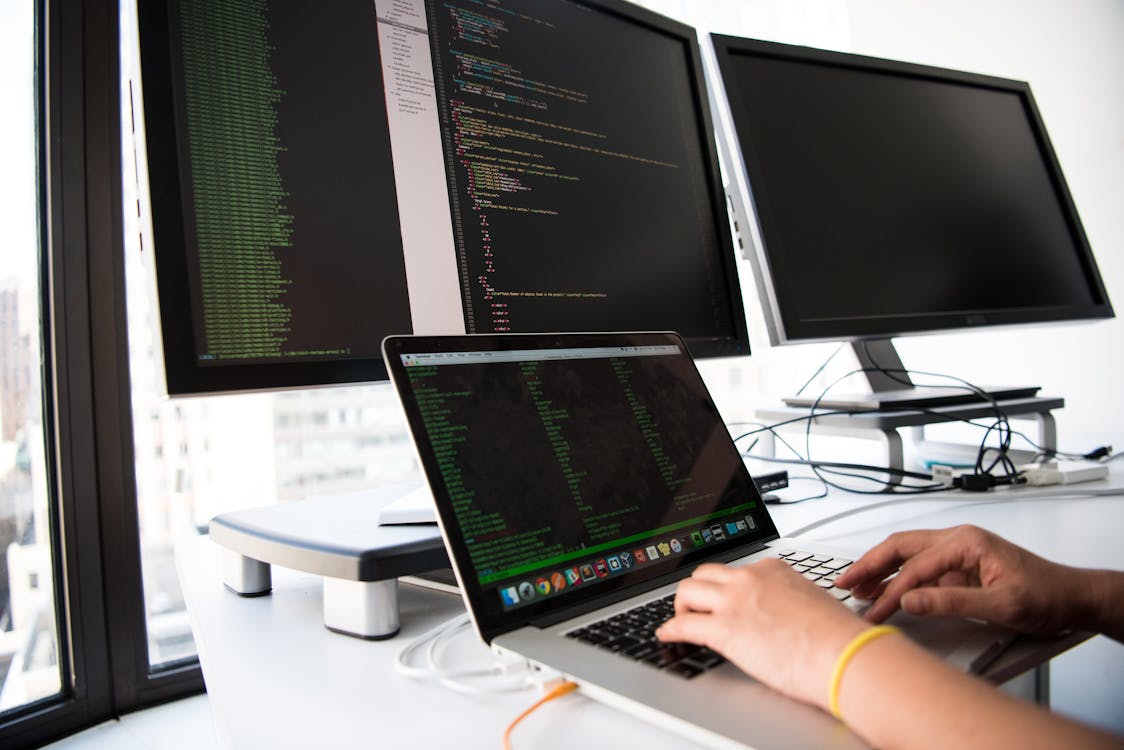
Your computer’s hardware should guide your choice. For a modern computer with 16 GB of RAM, an SSD, and a dedicated graphics card, DaVinci Resolve gives you the best results and the most room to grow. For a mid-range laptop with 8 GB of RAM, Shotcut or CapCut will usually run more smoothly, especially for 1080p projects. For an older computer, OpenShot is the safest starting point, and you should edit in 1080p, close other programs, and use proxy editing if the editor offers it. Proxy editing creates smaller preview files so the timeline stays smooth, then exports using the full-quality originals.
Storage matters as much as RAM. Video files are large, and a full hard drive will slow editing and exports. Keep at least 20 percent of your drive free, store finished projects on an external drive if needed, and use an SSD for active projects when possible. Also check your graphics driver before a big project, because an outdated driver can cause crashes in Resolve and other GPU-accelerated editors. A stable, up-to-date driver and a clean, cool computer will do more for editing performance than many settings tweaks.
How to Export Videos That Look Sharp
Export settings determine how your finished video looks. For YouTube, export in MP4 format with H.264 or H.265 video, 1080p resolution, and a frame rate that matches your footage, usually 30 frames per second. For TikTok and Reels, use a vertical 1080 by 1920 format. Avoid exporting at a much higher resolution than your source footage, because upscaling will not add real detail and will only make the file larger. Also avoid re-exporting the same video many times, because each compression pass loses a little quality.
Audio is just as important as video. Keep dialogue clear, avoid music that overpowers speech, and use the editor’s audio meters to prevent distortion. Add captions or subtitles when possible, because many viewers watch without sound and captions improve accessibility. Before publishing, watch the full export on a phone and on a larger screen, and check the beginning, middle, and end for glitches, black frames, or audio drops. A final full watch-through catches mistakes that a quick skim will miss.
Organise Footage Before You Edit
Good organisation saves hours. Create a project folder with subfolders for video, audio, images, and exports, and copy all footage into that folder before you start. Rename clips with clear names, such as beach-intro or interview-part-1, instead of leaving camera file names. Delete unusable takes early, so your timeline stays clean. If you use music or stock footage, keep a note of its licence, especially for YouTube, where copyright claims can affect monetisation.
Back up your project folder regularly, because video projects are too large and time-consuming to recreate. An external drive or cloud backup protects you if a drive fails. Save versions as you work, for example project-v1 and project-v2, so you can return to an earlier cut if a new idea does not work. These habits matter more than any single effect, and they separate frustrating projects from enjoyable ones.
Conclusion
The best free video editing software for Windows in 2026 depends on your goals and your computer. Choose DaVinci Resolve for professional power, CapCut for fast social videos, Clipchamp for quick Windows edits, and OpenShot or Shotcut for simple, free, open-source editing on modest hardware. Start with one editor, learn its timeline well, and only switch when you hit a real limit. Free software is no longer a compromise: with the right choice, you can produce videos that look and sound professional.
For more free Windows help, explore the InsuraBytes free tools hub and check your video file sizes with the File Size Converter before you upload. Planning your storage and export settings in advance will make every project smoother.
Frequently Asked Questions
Is DaVinci Resolve really free? Yes. Its free version includes full editing, colour, effects, and audio tools with no watermark. A paid Studio version adds advanced features such as stereoscopic tools and some AI effects, but most creators never need it. Can I edit 4K video for free? Yes, with Resolve or Shotcut, if your computer is powerful enough. Use 1080p proxies on weaker computers to keep editing smooth. Which free editor is easiest for beginners? OpenShot and Clipchamp are the easiest to learn, followed by CapCut. Resolve is more powerful but takes longer to master, so start simple if you are new and move up when you are ready.
Free Editors Compared: Which One Should You Pick?
If you are still unsure, use this simple decision guide. Choose DaVinci Resolve if you want the best quality, you have a capable computer, and you are willing to learn a professional interface. Choose CapCut if you make short social videos every week and you value speed, templates, and auto-captions. Choose Clipchamp if you want a quick Windows editor for slideshows, school work, or simple business videos. Choose Shotcut if you want a free, offline editor with good format support and no account. Choose OpenShot if you are a complete beginner or you have an older computer and you want the simplest possible timeline.
There is no penalty for trying two editors. Install one, edit a two-minute test video, and see how it feels. Pay attention to how smooth the timeline is, how easy it is to add titles, and how long exports take. The editor that feels comfortable after a test project is usually the right one, even if another editor is technically more powerful. Video editing is a skill you build over time, and the best editor is the one you will actually use regularly.
Common Beginner Mistakes to Avoid
Beginners often make the same mistakes, and avoiding them will improve your videos immediately. First, do not use shaky, poorly lit footage and expect editing to fix it. Good lighting and a steady camera matter more than any filter. Second, do not overuse transitions. A simple cut is usually better than a spin, slide, or flash between every clip. Third, do not ignore audio. Viewers will tolerate imperfect video far longer than they will tolerate distorted, echoing, or inconsistent audio. Record in a quiet room, keep the microphone close, and check levels before you publish.
Fourth, do not make videos too long. Cut ruthlessly, remove pauses and repeated points, and keep the strongest material. A tight five-minute video usually performs better than a rambling fifteen-minute version of the same idea. Fifth, do not forget titles and thumbnails. A clear title at the start of a video, and a readable thumbnail for YouTube, help viewers understand what they are about to watch. Finally, save and back up your work often. Video projects take hours, and a single crash without a backup can be heartbreaking.
Hardware and Performance Tips for Smooth Editing
If editing feels slow, a few upgrades help more than others. An SSD makes a bigger difference than a slightly faster processor, because video files are large and the editor constantly reads and writes them. Sixteen gigabytes of RAM is a good target for 1080p editing, and 32 GB is better for 4K. A dedicated graphics card speeds up effects and exports in Resolve and CapCut, but it is not essential for simple 1080p projects in OpenShot or Shotcut. Keep your computer cool and clean, because a hot laptop will slow down to protect itself, which causes stuttering during exports.
Software habits help too. Close browsers and other heavy programs while editing, especially if you have 8 GB of RAM. Work with proxy files on weaker computers, and render in smaller sections if a long export keeps failing. Update your graphics driver from the manufacturer’s site before a major project, and restart your computer before a long export. These small steps prevent many of the crashes that beginners blame on the editor itself.
Frequently Asked Questions
Do free editors add watermarks? The editors in this guide do not add watermarks to exports in their free versions, but some online editors and trial versions do. Always check export terms before you start a project, especially if you plan to publish commercially. Can I use free editors for YouTube monetisation? Yes, if you own the footage and use properly licensed music. Avoid copyrighted songs and stock clips without a licence, because YouTube may claim or block the video regardless of which editor you used. Is 8 GB of RAM enough? Yes for 1080p editing in OpenShot, Shotcut, and Clipchamp, if you close other programs. For 4K work in Resolve, 16 GB or more is strongly recommended.


2 Comments