How to Choose a Keyboard for Your Windows PC in 2026

Learning how to choose a keyboard for your Windows PC in 2026 is worth doing properly, because the keyboard is the part of your computer you touch more than any other. A keyboard that fits your hands, your desk, and the way you work can make typing faster and more comfortable, while the wrong one can cause sore wrists, constant typos, and a surprising amount of frustration. The problem is that there are hundreds of keyboards to choose from, and the differences between them are not obvious from a product photo. Membrane or mechanical, full-size or compact, wired or wireless, quiet or clicky: each choice changes how the keyboard feels and sounds. In this guide, you will learn what actually matters when you choose a keyboard, how the main types compare, and how to pick one that suits your budget and your work.
Start with How You Use Your Keyboard
The right keyboard depends on what you do all day. If you write for a living, comfort and key feel matter more than anything else, because you will press thousands of keys every day. If you play games, you need fast, reliable keys and features such as anti-ghosting, which lets the keyboard register several keys pressed at the same time. If your keyboard is for a family computer, durability and spill resistance may matter more than anything fancy. If you work in a shared office or late at night, a quiet keyboard is a kindness to everyone around you. Think about where the keyboard will sit, too. A large desk can fit a full-size keyboard with a number pad, while a small desk or a keyboard tray may need a compact model. If you move between a desktop and a laptop, a wireless keyboard that can switch between devices is useful. Before you look at any product, write down your answers: how many hours a day you type, whether you need a number pad, whether you game, whether noise matters, and how much desk space you have. Those answers will narrow hundreds of options down to a handful, and they will stop you from paying for features you will never use.
Membrane vs Mechanical: The Big Choice
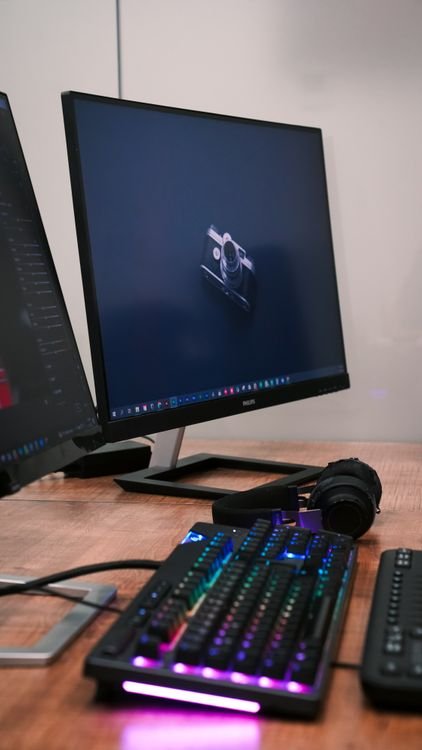
The biggest decision is between a membrane keyboard and a mechanical keyboard. A membrane keyboard has a rubber layer under the keys. Pressing a key pushes the rubber dome down and completes a circuit. Membrane keyboards are quiet, light, and cheap, and they are what most office computers come with. They are perfectly good for everyday typing, email, and web browsing, and a good membrane keyboard can last for years. Their weakness is feel: the keys can feel mushy, and it is harder to tell exactly when a key has registered, which some people find tiring over a long day. A mechanical keyboard has a separate switch under every key. The switch gives a clear, crisp feel and a distinct point where the key registers, and different switches feel different: some are smooth and quiet, some have a bump you can feel, and some click loudly. Mechanical keyboards usually last much longer than membrane keyboards, and many let you replace individual switches or keycaps. Their weaknesses are price and noise. A good mechanical keyboard costs more, and the clicky versions are loud enough to annoy people nearby, although quiet switch options exist. If you type a lot or you play games, a mechanical keyboard is usually worth the money. If you type lightly and you want something cheap and quiet, a membrane keyboard is the sensible choice.
Size and Layout: Full-Size, Tenkeyless, and Compact
Keyboards come in several sizes, and the size you choose affects both your desk and your comfort. A full-size keyboard has all the keys, including the number pad on the right, the arrow keys, and the function keys along the top. It is the best choice if you work with numbers, spreadsheets, or data entry, because the number pad saves a lot of time. Its drawback is width: it takes up a lot of desk space, and it pushes your mouse further to the right, which can strain your shoulder. A tenkeyless keyboard, often called TKL, drops the number pad but keeps everything else. It is the most popular size for most people, because it gives you more mouse space while keeping the arrow keys and function keys. A compact keyboard, such as a 75 percent or 60 percent model, is smaller still, dropping keys or squeezing them together to save space. Compact keyboards are good for small desks and for carrying in a bag, but they take time to get used to, because some keys move to different positions or need a function key combination. Whatever size you choose, check the layout before you buy. Most Windows keyboards use the standard US layout, but some compact keyboards use unusual layouts that make it hard to find keys. Also check that the keyboard has the keys you use often, such as a dedicated Delete key, arrow keys, and media controls, so you do not have to relearn your typing habits.
Wired vs Wireless: Which Connection Is Right for You?
Wired keyboards connect with a USB cable, and they are the simplest and most reliable option. There is no battery to charge, no wireless signal to drop, and no delay between pressing a key and seeing the result. A wired keyboard is the best choice for gaming and for a desktop that never moves. Its only real drawback is the cable, which adds clutter to your desk and limits where the keyboard can sit. Wireless keyboards connect by Bluetooth or with a small USB receiver, and they keep your desk tidy and let you use the keyboard from your lap or across the room. They need batteries or regular charging, and a cheap wireless keyboard can have a small delay or lose connection at the wrong moment, although good ones are very reliable. Bluetooth keyboards have another advantage: many can switch between two or three devices, such as a desktop, a laptop, and a tablet, with a single key press. If you buy wireless, check the battery life and how the keyboard charges, and keep a spare cable or batteries nearby. For most people, either connection is fine, and the choice comes down to whether you value a tidy desk or a connection that never needs charging. If you mostly use a laptop and want a bigger keyboard at your desk, a wireless model is often the more flexible choice.
Switches, Key Feel, and Comfort
Key feel is personal, and it is the hardest thing to judge from a product page. On a mechanical keyboard, the switch determines how the key feels and sounds. Linear switches move smoothly with no bump, which gamers like for fast repeated presses. Tactile switches have a small bump you can feel when the key registers, which many typists prefer because it confirms each keystroke. Clicky switches add a loud click to that bump, which some people love and others hate. Membrane keyboards do not offer this choice, but they do vary: some have soft, quiet keys, while others have short, crisp keys. If you can, try a keyboard in a shop before you buy it, and type a full paragraph, not just a few keys. Pay attention to whether your fingers get tired, whether you make more typos than usual, and whether the keys feel too high or too flat. Comfort features matter too. A keyboard with a wrist rest, adjustable feet that let you change the angle, and keys that are slightly curved to fit your fingers will feel better over a long day. If your wrists hurt when you type, the problem is often your posture or the keyboard height, not just the keyboard itself, so try raising or lowering the keyboard and keeping your wrists straight. Before you buy, it also helps to check your PC details with the free My Device Info tool on InsuraBytes, so you know which USB ports and Bluetooth version your computer has for the keyboard you choose.

What to Check Before You Buy
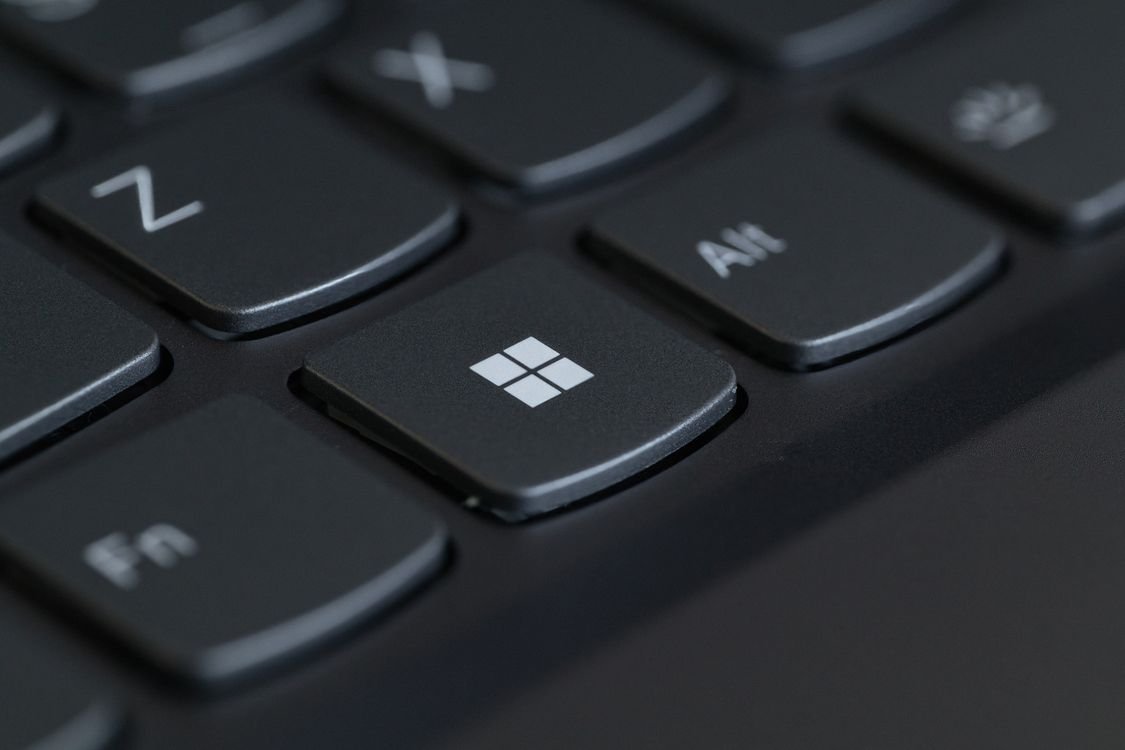
Before you spend money, run through a short checklist. First, check that the keyboard is made for Windows and that the key labels match, especially the Windows key and the layout. A keyboard made for a Mac will work on Windows, but the keys will be labelled differently and some shortcuts will feel wrong. Second, check the build quality. A keyboard that flexes when you press it hard, or one with thin, wobbly keys, will feel cheap and wear out faster. Third, look at the keycaps. Keycaps printed with cheap ink can wear smooth and blank within a year, while double-shot keycaps, where the letter is a separate piece of plastic, last much longer. Fourth, check the cable and the connection. A detachable USB-C cable is easier to replace than a fixed cable, and a wireless keyboard should come with its receiver or support Bluetooth. Fifth, think about extras. Backlighting helps if you type in a dark room, media keys are handy for volume and music, and a built-in USB hub can be useful on a desktop. But do not pay extra for features you will never use, such as elaborate RGB lighting if you only type documents. Finally, buy from a shop with a good return policy, so you can try the keyboard at home for a week and return it if the feel is wrong. A keyboard is a personal choice, and a week of real typing tells you more than any review.
How Much Should You Spend?
Keyboard prices range from under 20 dollars to more than 200 dollars, and the right budget depends on how much you type. For light, occasional use, a keyboard in the 20 to 40 dollar range is fine, and a good membrane keyboard in that price range will serve you well. For daily typing or gaming, spending 50 to 100 dollars usually buys a real improvement in feel, build quality, and durability, and this is where most people should look. Above 100 dollars, you are paying for premium switches, better materials, hot-swappable switches you can change yourself, and nicer keycaps. Those features are worth it if you type all day and you care about feel, but they will not make a casual user type any faster. Be careful of very cheap mechanical keyboards that cut corners on switches and keycaps, and be equally careful of expensive keyboards that charge for a brand name rather than quality. A good approach is to set your budget, read reviews of three or four keyboards in that range, and choose the one with the best reviews for typing comfort. Remember that a keyboard can last five years or more, so spending a little more on one you enjoy using every day is usually good value.
Conclusion
Now you know how to choose a keyboard for your Windows PC in 2026. Start with how you use it, decide between membrane and mechanical, pick a size that fits your desk, and choose a connection that suits your setup. Then check the feel, the build quality, and the layout before you buy, and give yourself a week to try it at home. The best keyboard is not the most expensive one or the one with the most features. It is the one that feels right under your fingers, fits your desk, and lets you type comfortably all day. Take your time, try a few if you can, and you will end up with a keyboard you enjoy using for years. You can find more free helpers for your PC in the InsuraBytes free tools hub.