
How to Fix a Laptop That Overheats on Windows 11

A laptop that overheats on Windows 11 is more than an annoyance. When the processor gets too hot, Windows slows it down to protect it, so your PC becomes sluggish, the fan roars, and the keyboard feels uncomfortably warm. Left unchecked, heat can shorten the life of your battery and other parts. The good news is that most overheating is caused by dust, blocked vents, runaway software or a wrong setting, and you can fix all of those yourself. In this guide we show you how to fix a laptop that overheats on Windows 11, from the quick checks that take two minutes to the deeper cleaning that brings a hot laptop back to normal.
First, Check How Hot Your Laptop Really Is
Before you fix anything, find out how hot your laptop is running. Download a free temperature monitor such as HWMonitor or Core Temp, which shows the temperature of your processor and other parts in real time. At idle, with only a browser open, a healthy laptop processor usually sits between 40 and 60 degrees Celsius. Under load, such as gaming or video editing, 70 to 85 degrees is normal. If the temperature regularly passes 90 degrees during ordinary use, or the laptop shuts down by itself, it is overheating. Note the temperature at idle and under load, and check whether the fan is spinning and whether hot air is coming from the vents. If no air is coming out and the fan is silent, the fan may have failed. If air is coming out but the laptop is still hot, dust or a software problem is more likely.
Clean the Vents and Fans
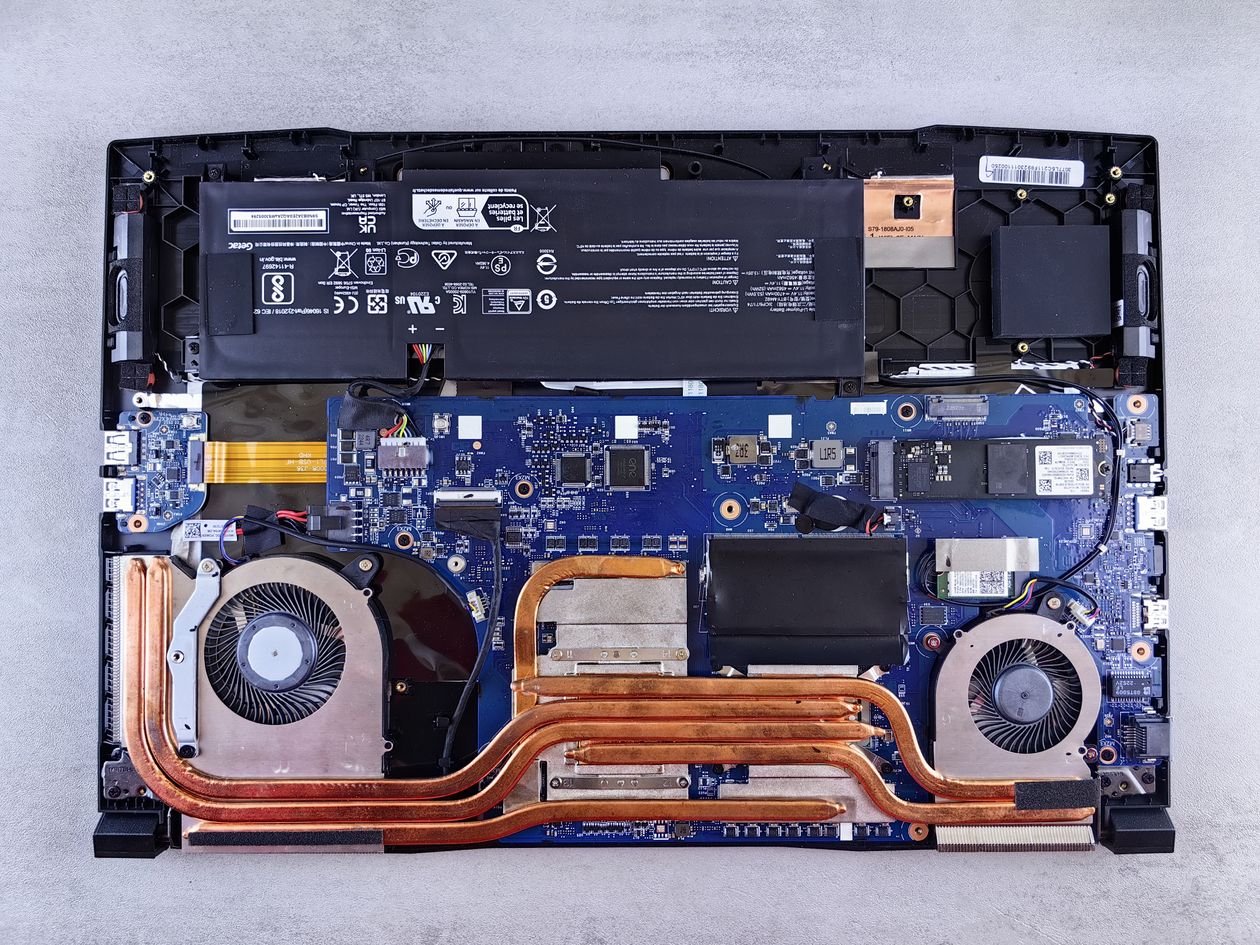
Dust is the most common cause of a laptop overheating, and cleaning it is the single most effective fix. Turn the laptop off, unplug it, and remove the battery if you can. Hold the fan still with a finger or a cotton swab, then blow short bursts of compressed air into the vents to push dust out. Do not let the fan spin freely while you blow air, because it can spin too fast and damage the bearing. Wipe the outside of the vents with a soft brush or a dry cloth. If you are comfortable opening the laptop, remove the back panel, following the maker’s guide, and clean the fan blades and the heatsink fins carefully. Do this every six months if you use the laptop daily, and more often if you have pets or use the laptop on soft surfaces. After cleaning, check the temperature again: a drop of ten degrees or more is common. If you do not feel confident opening the laptop, a repair shop can clean it for a modest fee.
Give Your Laptop Air: How and Where You Use It Matters
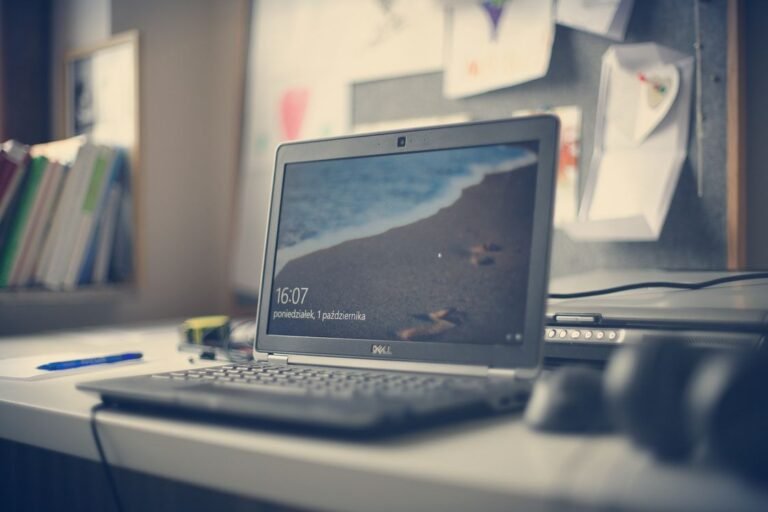
Laptops cool themselves by drawing in cool air and pushing hot air out, so where you put the laptop matters. Never use a laptop on a bed, a sofa, a cushion or your lap for long periods, because soft surfaces block the vents underneath. Use it on a hard, flat surface such as a desk, and leave a gap at the back so hot air can escape. A laptop stand or a cooling pad lifts the laptop, improves airflow, and can lower temperatures by several degrees. Keep the laptop out of direct sunlight and away from radiators, and do not stack books or papers against the vents. In a warm room, even a clean laptop will run hotter, so a fan or air conditioning helps. These changes cost nothing, yet they are often enough to stop a laptop from overheating during everyday work. If you are buying a new laptop, consider cooling and ventilation as well as speed, as we explain in our guide to choosing a laptop for work and school in 2026.
Stop the Software That Makes Your Laptop Work Too Hard
Software can make a laptop overheat even when the hardware is fine. Open Task Manager with Ctrl plus Shift plus Esc and sort by CPU to find the apps using the most processor power. A browser with many tabs, a game running in the background, or a program stuck in a loop can keep the processor busy and hot. Close apps you do not need, and check which programs start with Windows, because a dozen startup apps will heat the laptop from the moment you turn it on. Windows Update, antivirus scans and cloud syncing can also spike the temperature for a while, so let them finish and then check again. Update your graphics and chipset drivers, because an old driver can make the processor work harder than it should. If a single app always causes overheating, check for an update or reinstall it. For more on taming background apps, see our guide to stopping Windows 11 from slowing down over time.

Change Your Power and Fan Settings in Windows 11
Windows 11 lets you trade a little performance for a cooler laptop. Open Settings, go to System, then Power, and choose Balanced or Best power efficiency instead of Best performance when you do not need full speed. This lowers the processor’s power limit and reduces heat. Next, check your laptop maker’s power software, such as MyASUS, Lenovo Vantage, HP Support Assistant or Dell Power Manager, which often has a fan or cooling mode. Choose a Quiet or Cool mode for everyday work and a Performance mode only for gaming or editing. In the BIOS or UEFI settings, some laptops let you set the fan to run sooner or faster, which keeps the temperature lower at the cost of more noise. Avoid setting the fan to silent mode if your laptop already overheats, because that lets heat build up. These settings will not fix a blocked vent, but they can keep a healthy laptop several degrees cooler.
When the Battery, Thermal Paste or Fan Is the Problem
If cleaning and settings do not help, a part may need attention. A swollen or failing battery can press against internal parts and trap heat, and it is also a safety risk, so if the laptop case is bulging or the trackpad is lifting, stop using it and get the battery replaced by a professional. Thermal paste, the compound that transfers heat from the processor to the heatsink, dries out after a few years, especially on laptops that run hot. Replacing it can lower temperatures by ten degrees or more, but it needs the laptop to be opened and the cooler removed, so it is a job for a repair shop unless you are experienced. A fan that rattles, grinds or stops spinning needs replacing too. If your laptop is still under warranty, contact the maker before you open it, because opening the case can void the warranty. A repair shop can test the fan, the paste and the battery in one visit and tell you which one is at fault.
What Not to Do with an Overheating Laptop
A few common mistakes make overheating worse. Do not block the vents with a case or a skin that covers them, and do not use the laptop inside a closed bag while it is running. Do not put the laptop in a fridge or freezer to cool it down: the sudden cold can cause condensation inside, which damages electronics. Do not use a vacuum cleaner on the vents, because it can create static and spin the fan too fast. Do not ignore repeated sudden shutdowns, because they are Windows protecting the processor from heat damage, and continuing to use the laptop that way can cause permanent harm. Do not install a third-party fan control app that overrides the maker’s settings unless you know what you are doing. If your laptop shuts down often, back up your files first, then work through the fixes in this guide. A laptop that keeps freezing as well as overheating may have a deeper problem, so read our guide to fixing a frozen Windows PC without losing work.
Frequently Asked Questions
Is it normal for a laptop to get hot on Windows 11?
Some warmth is normal, especially during gaming, video editing or charging. The bottom of the laptop may feel warm to the touch. It is not normal if the fan runs loudly during light use, the keyboard is too hot to touch, or the laptop shuts down by itself.
What temperature is too hot for a laptop?
Most laptop processors are designed to run safely up to about 95 to 100 degrees Celsius, but they should not stay there during ordinary use. If your processor regularly exceeds 90 degrees while browsing or working in documents, clean the vents and check for runaway software.
Does a cooling pad really help?
Yes, a cooling pad or a laptop stand can lower temperatures by a few degrees by improving airflow under the laptop. It helps most when the vents are on the bottom. It will not fix a laptop that is full of dust or has a failed fan.
Should I replace thermal paste myself?
Only if you are confident opening a laptop and removing the cooler. The job needs the right paste, careful cleaning and correct reassembly. If you are unsure, a repair shop can do it quickly and safely, often as part of a full cleaning service.
Conclusion
Fixing a laptop that overheats on Windows 11 usually comes down to three things: clean the vents and fans, give the laptop air to breathe, and stop the software that keeps the processor working too hard. Check the temperature before and after each fix, so you know what worked, and change your power settings to favour cooling when you do not need maximum speed. If cleaning and settings do not bring the temperature down, have the battery, fan and thermal paste checked by a professional. A cooler laptop is a faster, quieter and longer-lived laptop. Find more free tools and practical Windows guides at InsuraBytes.
One Comment