
How to Choose a Laptop for Work and School in 2026

Learning how to choose a laptop for work and school in 2026 is mostly a matter of matching the machine to the way you will actually use it, rather than buying the most powerful or the most expensive one. A laptop for writing essays and joining video calls needs very different strengths from one used for video editing or gaming, and the right choice can save you hundreds of pounds while still lasting for years. This guide explains the parts that matter, the ones that do not, and the simple checks that stop you from buying the wrong laptop for the job.
Start With How You Will Actually Use the Laptop
Before you look at a single specification, write down what the laptop has to do on a normal day. Will it mostly run a browser, a word processor, and video calls? Will it need to handle large spreadsheets, photo editing, or programming? Will it travel with you every day, or sit on a desk at home? The answers decide almost everything else. A student who carries a laptop between lectures needs something light with a long battery life. Someone who works from a desk can accept a heavier machine with a bigger screen. A person who edits video needs a stronger processor and more memory than someone who mainly writes documents.
It also helps to be honest about what you will not do. If you never play games, you do not need a gaming graphics card. If you never edit video, you do not need a top-end processor. Many people overspend because they buy for an imaginary version of their work rather than the real one. A good test is to look at what your current computer struggles with. If it is slow to open programs, you need more memory or a faster drive. If the battery dies by lunchtime, you need better battery life. If the screen hurts your eyes, you need a better display. Buy to fix the problems you actually have, and you will spend less and be happier with the result.
Processor and Memory: What Matters for Work and School
The processor and the memory are the two parts that decide how fast a laptop feels in everyday use. For work and school in 2026, a modern mid-range processor is enough for almost everyone: look for an Intel Core 5 or Core 7, or an AMD Ryzen 5 or Ryzen 7, from the last two generations. A top-end processor is only worth it if you regularly edit video, compile code, or run heavy software. For writing, browsing, and video calls, the difference between a mid-range and a top-end processor is barely noticeable, but the difference in price is large.
Memory matters more than most people realise. In 2026, 16 GB of RAM is the right amount for work and school. It lets you keep a browser with many tabs open, a word processor, and a video call running at the same time without the laptop slowing down. Laptops with only 8 GB can feel sluggish once you have a few programs open, and they are harder to upgrade later, because the memory is often soldered to the board. If you want to understand exactly how much memory different jobs need, our guide on how much RAM you really need in 2026 breaks it down by use, from basic browsing to heavy creative work.
Storage: Why an SSD Is No Longer Optional
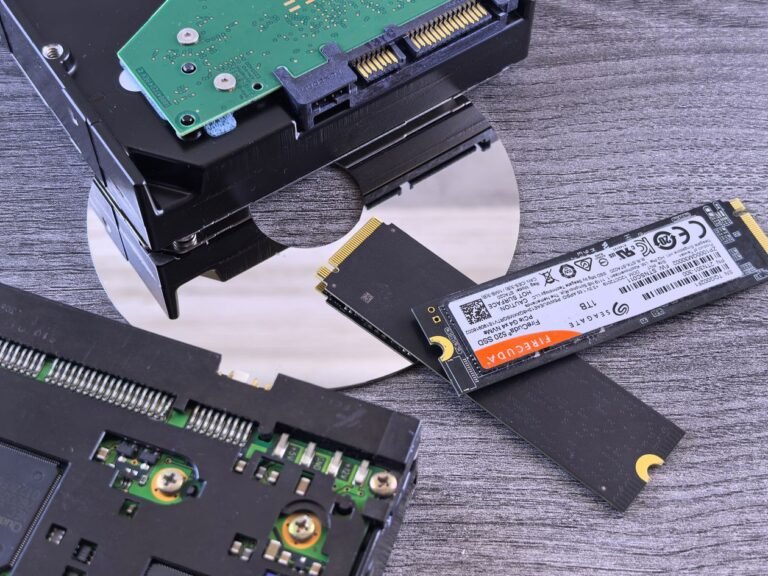
Every laptop worth buying in 2026 has a solid-state drive, or SSD, instead of an old spinning hard drive. An SSD makes the laptop start in seconds, open programs almost instantly, and feel responsive in a way a hard drive never can. If you are comparing two laptops and one has an SSD and the other does not, the one with the SSD will feel faster in daily use even if its processor is weaker. For storage size, 512 GB is the sweet spot for most people: it holds Windows, your programs, and a large collection of documents and photos with room to spare. If you keep a lot of video or games, 1 TB is worth the extra cost.
It is also worth checking whether the storage can be upgraded later. Some thin laptops have the drive soldered in place, which means the size you buy is the size you keep. Others have a slot you can upgrade. If you are unsure, assume you cannot upgrade it and buy the size you need now. For a deeper look at the storage question, including when a bigger drive is worth paying for, read our comparison of SSD vs HDD and which storage upgrade is worth your money. The short version is simple: always choose an SSD, and buy more space than you think you need.
Screen, Keyboard, and Build Quality
You will look at the screen and type on the keyboard for thousands of hours, so they deserve as much attention as the processor. For the screen, a 14-inch display is a good balance for most people: large enough to work on comfortably, small enough to carry. A resolution of 1920 by 1080, often called Full HD, is the minimum you should accept, and a brighter screen, around 300 nits or more, is much easier to use near a window or outdoors. If you can, look at the screen in a shop before you buy, because numbers on a page do not tell you how it feels to read on.
The keyboard matters just as much, and it is the part most often overlooked. Keys should feel firm and have a little travel when you press them, not feel flat and mushy. A backlit keyboard is worth having if you ever work in a dim room, and a fingerprint reader built into the power button is a convenient way to sign in. Build quality is the third piece: a laptop with an aluminium or magnesium body will survive being carried every day far better than one made entirely of plastic. Open and close the lid in the shop if you can. If it flexes a lot or feels flimsy, it will not age well.

Battery Life and Portability
Battery life is one of the biggest differences between laptops, and it is also one of the most exaggerated in advertising. A manufacturer may claim eighteen hours, but that is usually measured with the screen dimmed and almost nothing running. In real use, with a normal brightness and a browser open, expect roughly two-thirds of the claimed figure. For work and school, aim for a laptop that gives you at least eight hours of real use, which is enough to get through a full day without hunting for a charger. Laptops with newer, more efficient processors, including the latest Snapdragon and Apple Silicon machines, tend to do best here, but they also have their own trade-offs.
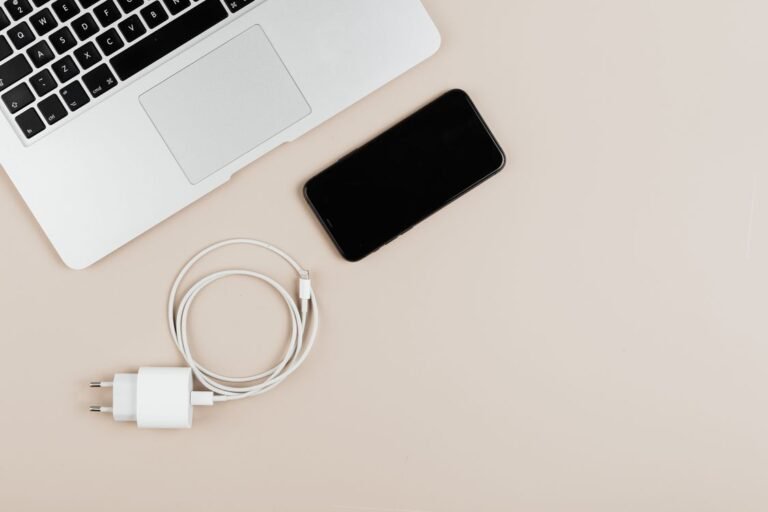
Portability is about more than weight. A laptop that weighs 1.4 kilograms sounds light, but with its charger and a bag it is heavier than you expect, and a large 16-inch machine can be awkward on a small desk or a train tray table. If you carry the laptop every day, a 13-inch or 14-inch machine under 1.5 kilograms is the comfortable choice. If it mostly stays on a desk, a 15-inch or 16-inch screen is nicer to work on, and the extra weight does not matter. Think about the charger too: a laptop that charges over USB-C can use the same charger as your phone, which means one less thing to carry.
How to Choose a Laptop for Work and School on a Budget
You do not need to spend a fortune to get a good laptop for work and school. A well-chosen machine in the mid-range will do the job for years, and the money you save can go towards a good bag, a mouse, or a second monitor for your desk. The trick is to spend on the things you cannot change later, such as memory and storage, and to save on the things you can live without, such as a top-end processor or a premium finish. A laptop with 16 GB of memory, a 512 GB SSD, and a mid-range processor will handle work and school comfortably, and it will cost far less than a flagship model.
It is also worth looking at the previous generation of a model you like. When a new version comes out, the old one often drops in price while remaining more than capable for everyday work. Refurbished laptops from the manufacturer can be an even better deal, because they are tested, cleaned, and sold with a warranty, often for a third less than new. Avoid the cheapest laptops on the shelf, though. A machine with 4 GB of memory and a slow drive will feel old within a year, and the money you saved will be spent twice over in frustration. The cheapest laptop is rarely the best value.
Windows Laptops vs Chromebooks: A Quick Comparison
If your work is mostly in a browser and in Google Docs, a Chromebook is worth considering. Chromebooks are usually cheaper than Windows laptops, they start quickly, they update themselves, and they are hard to break. For a student whose school uses Google Classroom, or for someone who mainly browses, writes, and streams video, a Chromebook can be the best value. But Chromebooks have limits. They cannot run full Windows programs such as the desktop versions of Microsoft Office, Adobe software, or many specialised tools, and they rely on an internet connection more than a Windows laptop does.
A Windows laptop is the safer choice if you need specific software for work or study, if you use Microsoft Office heavily, or if you want the widest choice of programs. Windows laptops also come in a much wider range of shapes and prices, from light ultrabooks to powerful workstations. If you are unsure, ask your school or employer whether any software you need only runs on Windows. If the answer is yes, the decision is made for you. If everything you do happens in a browser, a Chromebook will save you money and simplify your life.
What to Check Before You Buy
Before you pay, run through a short checklist. First, check the warranty and the return policy, because a laptop is a big purchase and you want time to discover any problem. Second, check the ports: does it have enough USB ports, and does it have the ones you need, such as USB-C, HDMI, or a headphone socket? Third, check whether the memory and storage can be upgraded, or whether they are fixed. Fourth, read a few reviews from people who have used the laptop for more than a week, because early reviews often miss problems that appear later, such as a noisy fan or a screen that wobbles.
Finally, if you can, try the laptop in person. Type a paragraph on the keyboard, look at the screen from an angle, and pick the machine up to feel its weight. Numbers and reviews are useful, but the way a laptop feels in your hands tells you things a specification sheet never will. Buy from a seller with a fair return policy, keep the box for a couple of weeks, and use the laptop hard in that first fortnight. If something is wrong, you will find out quickly, and you can still change your mind.
Conclusion
Knowing how to choose a laptop for work and school in 2026 comes down to a few clear priorities: 16 GB of memory, a 512 GB SSD, a comfortable screen and keyboard, and enough battery to last a full day. Spend on the parts you cannot upgrade, save on the power you will never use, and try the machine before you buy it if you can. A laptop is a tool you will use every day for years, so the right choice is the one that fits your actual work, your bag, and your budget. Pick the machine that does that, and it will serve you well long after the excitement of buying it has faded.
One Comment