How to Choose the Right Graphics Card for Your Windows PC in 2026
The graphics card is the single most expensive part of most Windows PCs, and the easiest one to get wrong. Buy too little and your games stutter; buy too much and you have paid hundreds of dollars for power your monitor can never show. Learning how to choose the right graphics card for your Windows PC is really about matching the GPU to three things: what you play or create, what your monitor can display, and what your power supply and case can actually hold. This guide walks through each step in plain language, with real 2026 price bands and no jargon you do not need.
What Does a Graphics Card Actually Do?
A graphics card, or GPU, is a specialised processor that draws everything on your screen — from the Windows desktop to a 3D game world. While your CPU is a generalist that handles a bit of everything, the GPU has thousands of small cores designed to do the same maths operation on millions of pixels at once. That is why games, video editing, 3D rendering, and AI tools all lean on it so heavily.
Modern GPUs also do more than draw pictures. NVIDIA’s cards include ray tracing cores for realistic light and Tensor cores for AI features like DLSS upscaling. AMD’s cards offer their own upscaling, FSR, and strong value at many price points. Intel’s Arc cards have matured into a genuine budget option. The brand matters less than the performance tier — a mid-range card from any of the three will beat a high-end card from five years ago.
One warning up front: never judge a graphics card by its VRAM number alone. A card with 16GB of slow memory can be slower than a card with 12GB of fast memory on a better chip. VRAM matters, but the GPU chip itself matters more.
Step 1: Decide What You Actually Use Your PC For
Every good GPU choice starts with an honest list of what you do. A card that is perfect for one person is a waste of money for another.
Light gaming and everyday use
If you play older titles, indie games, or esports games like Valorant, CS2, or League of Legends at 1080p, you do not need a powerful card. Integrated graphics in a modern CPU — or an entry-level card around $200–300 — will run these games smoothly. Spending more here buys you nothing you can see.
Mainstream 1080p and 1440p gaming
This is where most Windows gamers live. For smooth 60–144 frames per second at 1080p or 1440p in modern games, look at the mid-range: roughly $300–600 in 2026. Cards in this band handle high settings at 1080p and medium-to-high settings at 1440p, and they pair well with the monitors most people actually own.
4K gaming and high-refresh competitive play
4K at 60fps, or 1440p at 240Hz, needs a high-end card — $700 and up. Be honest about whether you own a monitor that can show the difference. A 4K-capable card connected to a 1080p 60Hz monitor is money you will never see on screen. If you are still choosing a screen, read our guide on how to choose a monitor for your PC first — the monitor and the GPU should be chosen together.
Video editing, 3D work, and AI
Creators have different priorities. Video editors benefit from NVIDIA’s NVENC encoder and CUDA acceleration in Premiere Pro and DaVinci Resolve. 3D artists need VRAM — 12GB or more — for large scenes. AI hobbyists running local models want as much VRAM as they can afford, since model size is limited by it. If you create as well as play, favour VRAM and encoder support over a few extra gaming frames.
Step 2: Match the Card to Your Monitor
Your monitor sets the ceiling for what a GPU can show you. A 1080p 60Hz monitor displays 60 frames per second, no matter how fast the card is. Buying a card that renders 200fps for that screen is like buying a sports car for a 30mph road.
Use this simple match: 1080p 60–144Hz goes with an entry to mid-range card; 1440p 60–165Hz goes with a solid mid-range card; 4K or 1440p 240Hz goes with a high-end card. If you plan to upgrade your monitor within a year, you can buy one tier up — but buying two tiers up “for the future” usually means paying today’s prices for performance you will not use until cheaper cards exist anyway.
Also check your monitor’s ports. Most modern cards offer HDMI 2.1 and DisplayPort 1.4 or 2.1. Make sure the card has the right output for your monitor’s best refresh rate — a 144Hz monitor connected over an old HDMI cable may be stuck at 60Hz.
Step 3: Set a Realistic Budget
Graphics card prices in 2026 roughly break into four bands. Entry level, around $200–300, covers 1080p gaming and light creation. Mid-range, around $300–600, is the sweet spot for most people and covers 1440p comfortably. High-end, around $700–1,000, covers 4K and high-refresh play. Enthusiast, $1,000 and up, is for 4K ultra settings, heavy 3D work, or simply wanting the fastest card available.
The sweet spot rule is worth remembering: the best value is almost always one step below the flagship. The top card costs 40–60% more for roughly 10–20% more performance. The second-tier card is where the smart money goes.
Do not forget the rest of the system. A $600 GPU in a PC with 8GB of RAM and a slow hard drive will still feel sluggish. If your whole PC is old, check our guide on how much RAM you really need in 2026 — a RAM upgrade is often cheaper than a GPU upgrade and can unlock the performance you already own.
Step 4: Check VRAM — How Much Do You Need?
VRAM is the graphics card’s own memory, used to store textures, frame data, and AI models. In 2026, 8GB is the minimum for modern games at 1080p, and it is already tight at 1440p with high-resolution texture packs. 12GB is the comfortable choice for 1440p and light 4K. 16GB or more is the right call for 4K gaming, heavy video editing, 3D rendering, and local AI work.
Games keep using more VRAM every year, so buying a card with more VRAM than you need today is one of the few kinds of future-proofing that actually pays off — as long as the GPU chip itself is also fast enough to use it. A weak chip with huge VRAM is still a weak card.
Step 5: Check Your Power Supply and Case
This is the step most first-time upgraders skip, and the one that causes the most returns. A graphics card draws far more power than any other part in your PC, and it needs to physically fit.
First, check your power supply wattage. The label on the side of the PSU lists it, or you can check your PC’s specifications. Entry-level cards typically need a 450–550W supply; mid-range cards need 550–650W; high-end cards need 750W or more. The card’s official page lists a recommended PSU wattage — trust it, and leave headroom. A cheap, old, or underpowered PSU paired with a hungry GPU can cause random crashes, or worse.
Second, check the power connectors. Modern cards need one, two, or even three 8-pin PCIe power cables from the PSU, and the newest high-end NVIDIA cards use a 12V-2×6 connector that may need an adapter. If your PSU does not have the right cables, you will need a new PSU or a different card.
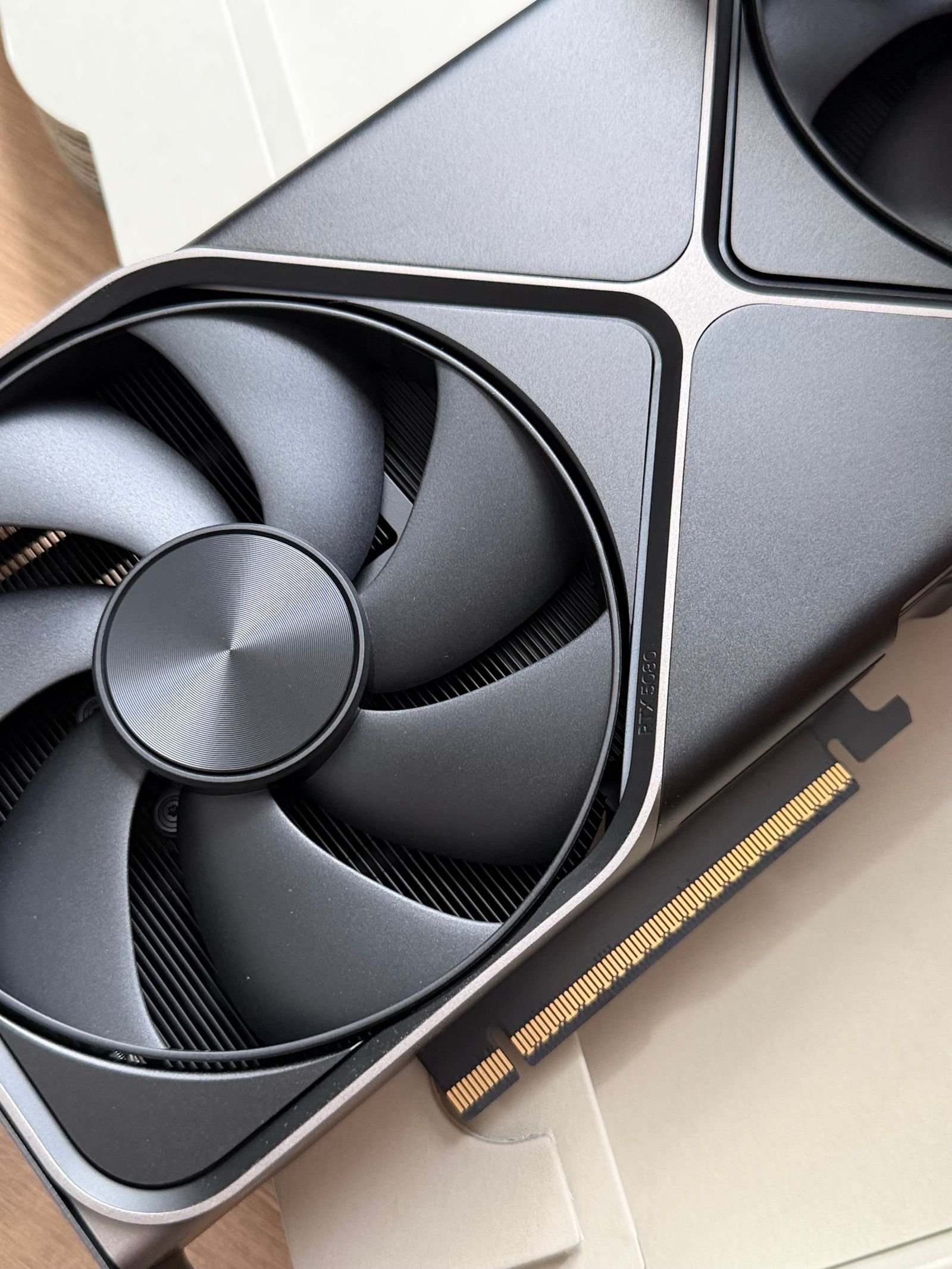
Third, measure your case. Graphics cards are long — high-end models can exceed 320mm — and thick, often taking two and a half or three slots. Measure the free space from the back of the case to the nearest obstruction, check the slot width, and compare it with the card’s published length before you order. Also confirm your case has enough airflow: a powerful card in a sealed box will throttle itself and perform like a cheaper one.
Step 6: NVIDIA vs AMD vs Intel in 2026
All three GPU makers are worth considering in 2026, and the right choice depends on your priorities rather than brand loyalty.
NVIDIA leads on features: the best ray tracing, DLSS upscaling that genuinely improves image quality, the NVENC encoder for streaming and recording, and the widest support in creative apps and AI tools. You usually pay a premium for that lead — roughly 10–20% more than an AMD card with similar raw speed.
AMD wins on value. Its cards typically give you more VRAM and more raw frames per dollar, and FSR upscaling works on any card, including NVIDIA’s. If you mostly play games and want the most performance for your money, AMD is often the smarter buy.
Intel Arc has become a genuine budget contender. Arc cards offer strong 1080p performance, good media encoding, and aggressive pricing, with drivers that have improved enormously since launch. For a first build or a budget upgrade, Intel deserves a look — just check that your favourite games run well on Arc first, as a few older titles still have quirks.
If you play mostly competitive games and stream, NVIDIA’s encoder is a real advantage. If you want maximum frames per dollar, AMD usually wins. If your budget is tight, Intel is worth pricing. None of the three is a wrong choice if the performance tier fits your monitor.
Step 7: New vs Used — Should You Buy Second-Hand?
Used graphics cards can save 30–50%, but they carry risks. Cards used for cryptocurrency mining may have run at full load for years, and a used card usually has no warranty. If you buy used, buy from a seller with a return policy, test the card immediately with a demanding game or benchmark, and check temperatures under load — anything consistently above 85°C is a warning sign.
For most people, a new mid-range card with a warranty is better value than a used high-end card with no comeback. The exception is a lightly used card from a known seller at a big discount — then the savings can justify the risk. Never buy a used card from a listing with no photos of the actual card, and never pay by a method that offers no buyer protection.
Step 8: Install and Set Up Your New Card
Installing a graphics card is one of the easiest PC upgrades. Power off the PC, unplug it, and press the power button once to discharge any remaining charge. Remove the old card by releasing the PCIe slot clip and unscrewing the bracket, then seat the new card firmly until the clip clicks, screw in the bracket, and connect the power cables. Close the case and power on.
Then install drivers properly. Uninstall the old drivers first with Display Driver Uninstaller (DDU) in Safe Mode — this avoids conflicts, especially when switching brands. Download the latest driver from NVIDIA, AMD, or Intel directly, never from a third-party driver site. After installing, open Windows Settings, check that the card is recognised, and run a game to confirm it works. If you want to squeeze more performance from the setup, our guide on how to optimize Windows 11 for gaming covers Game Mode, driver settings, and background-app cleanup.
Common Mistakes to Avoid
The most common mistake is overspending on the GPU while ignoring the CPU. A very fast card paired with a five-year-old budget CPU will be held back — the CPU cannot feed it frames fast enough. This is called a bottleneck, and it means you paid for performance you cannot use. As a rough rule, the GPU should cost roughly one and a half to two times the CPU, not five times.
The second mistake is buying for a monitor you do not own. A 4K card for a 1080p screen, or a 240Hz card for a 60Hz screen, wastes money. Match the card to the screen in front of you.
The third is ignoring the power supply. A new card that your PSU cannot feed will crash under load, and those crashes look like a faulty card. Check wattage and connectors before ordering, not after.
The fourth is chasing a single benchmark number. One game or one synthetic test does not tell the whole story. Look at results across several games at your resolution, and pay attention to 1% low frame rates — they tell you how smooth the game actually feels, not just the average.
Frequently Asked Questions
What is the best graphics card for most people in 2026?
A mid-range card in the $300–600 range. It handles 1080p and 1440p gaming at high settings, works with a normal 550–650W power supply, and fits in most cases. It is the tier where every dollar buys the most visible performance.
Is 8GB of VRAM enough in 2026?
For 1080p gaming, yes — with care. For 1440p with high texture settings, 12GB is safer, and 16GB is the comfortable choice if you want the card to last four or five years. If you edit video or run local AI models, favour 12GB or more from the start.
Do I need to upgrade my power supply for a new graphics card?
Maybe. Check the card’s recommended PSU wattage and compare it with your supply’s label. If your PSU is below the recommendation, old, or a no-name unit, replace it — a good PSU protects every other part in your PC.
Will a new graphics card work with my old motherboard?
Almost certainly, if it has a PCIe x16 slot — which every desktop motherboard from the last decade does. PCIe is backwards compatible, so a new card works in an older slot with only a tiny performance difference in most cases.
Should I wait for the next generation of graphics cards?
There is always a next generation coming. If you need a card now, buy now — waiting costs you months of use for an uncertain discount. Only wait if a new launch is confirmed within weeks and your current setup still works.
Conclusion
Choosing the right graphics card for your Windows PC in 2026 comes down to a simple chain: your games and work decide the performance tier, your monitor decides what that performance is worth, your budget picks the band, and your power supply and case decide what actually fits. Get those four links right, and any of the current NVIDIA, AMD, or Intel cards in the right tier will serve you well for years. Buy the card your screen can show, not the one the marketing wants you to want — and spend the money you save on games to play with it.