
How Much RAM Do You Really Need in 2026?
Asking how much RAM do you really need in 2026 is more important than ever, because computers, browsers, and games use more memory than they did just a few years ago, yet buying more RAM than you need wastes money that could go to a faster SSD or a better processor. RAM, or random access memory, is the fast, temporary workspace where your computer holds the programs and data you are actively using. When RAM fills up, Windows moves data to slower storage, which causes stuttering, long loading times, and freezes. When you have enough RAM, everything feels smooth. This guide explains, in plain language, how much memory different users need in 2026.
The short answer is that 16 GB is now the sweet spot for most Windows users, 8 GB is the minimum for light use, and 32 GB is worth it for gamers, creators, and heavy multitaskers. But the right amount depends on what you do, how many programs you run at once, and how long you plan to keep your computer. A student who writes essays and browses the web has very different needs from a video editor working with 4K footage or a gamer running the latest titles while streaming. This guide breaks down each use case so you can buy with confidence.
What RAM Does, in Simple Terms
Think of RAM as your desk, and your hard drive or SSD as a filing cabinet. A bigger desk lets you spread out more papers and work on more tasks at once without constantly filing and retrieving documents. When the desk is full, you must keep putting papers away and taking them out again, which slows you down. In a computer, that filing and retrieving is called swapping or paging, and it is much slower than using RAM, even on a fast SSD. That is why a computer with too little RAM feels slow even if its processor is fast.
RAM is also temporary: it clears when you shut down or restart. It does not store your files permanently, and adding RAM will not increase your storage space. What it does is let you run more programs smoothly, switch between them faster, and handle larger files without slowdowns. RAM speed and type, such as DDR4 or DDR5, matter too, but capacity is usually the most important factor for everyday performance. A computer with enough capacity and ordinary speed will usually beat a computer with faster RAM but too little of it.
8 GB in 2026: Enough for Light Use Only
Eight gigabytes of RAM was once generous, but in 2026 it is the minimum for light use. Windows 11 itself uses several gigabytes, a modern browser with a dozen tabs can use two or three more, and a video call or office app adds more still. A computer with 8 GB can handle web browsing, email, word processing, video streaming, and simple schoolwork, especially if you keep tabs and programs to a minimum. It will feel acceptable for those tasks, but it will struggle if you open many tabs, run a video call while editing a document, or use a demanding app.
If you already own a computer with 8 GB and it feels slow, check Task Manager’s Performance tab to see memory usage. If memory is regularly above 85 percent, you are likely hitting the limit. Upgrading to 16 GB is often the cheapest and most effective improvement, and on many desktops and some laptops it is a simple upgrade. On laptops with soldered RAM, however, you cannot upgrade later, so buying 16 GB from the start is much safer. Do not buy a new computer with 8 GB in 2026 unless your budget is very tight and your use is genuinely light.
16 GB: The Sweet Spot for Most People
Sixteen gigabytes is the best choice for most Windows users in 2026. It comfortably handles Windows 11, a browser with twenty or thirty tabs, office apps, video calls, music streaming, and photo editing, all at once. It also gives headroom for future software, which tends to use more memory over time. Gamers can play most modern games at 1080p and 1440p with 16 GB, especially when paired with a dedicated graphics card, although the most demanding titles are beginning to recommend more.
For students, office workers, and home users, 16 GB offers the best balance of price and performance. It avoids the constant swapping that makes 8 GB feel slow, without the extra cost of 32 GB that many users will never use. If you plan to keep your computer for four or five years, 16 GB is also a good investment in future-proofing, because software requirements rarely go down. When in doubt, and if the price difference is modest, choose 16 GB over 8 GB.
32 GB: For Gamers, Creators, and Heavy Multitaskers
Thirty-two gigabytes is worth it if you edit video, work with large photos, run virtual machines, develop software, or play demanding games while streaming and running other apps. Video editing in 4K, 3D modelling, and large spreadsheet or database work can easily use more than 16 GB, and having 32 GB prevents slowdowns during exports and renders. Gamers who play the latest open-world titles, especially at high settings or with mods, will also benefit, as will users who keep fifty or more browser tabs open alongside several desktop apps.
For most other users, 32 GB is nice to have but not essential. It will not make web browsing or word processing noticeably faster than 16 GB, because those tasks simply do not use that much memory. The benefit appears only when you actually fill 16 GB. If you are unsure, monitor your current memory usage for a week: if you regularly exceed 14 GB, upgrade to 32 GB. If you rarely exceed 10 GB, save the money for an SSD upgrade or a better monitor.
64 GB and Beyond: Who Actually Needs It?
Sixty-four gigabytes and more is for professionals with very specific workloads: editing 8K video, working with huge 3D scenes, running several virtual machines at once, or processing large scientific datasets. For gaming and ordinary office work, 64 GB will sit mostly unused, and the money is better spent on a faster graphics card, a larger SSD, or a better monitor. That said, if you buy a high-end workstation that you cannot upgrade later, choosing more RAM at purchase can be a form of insurance, especially if your workload may grow.
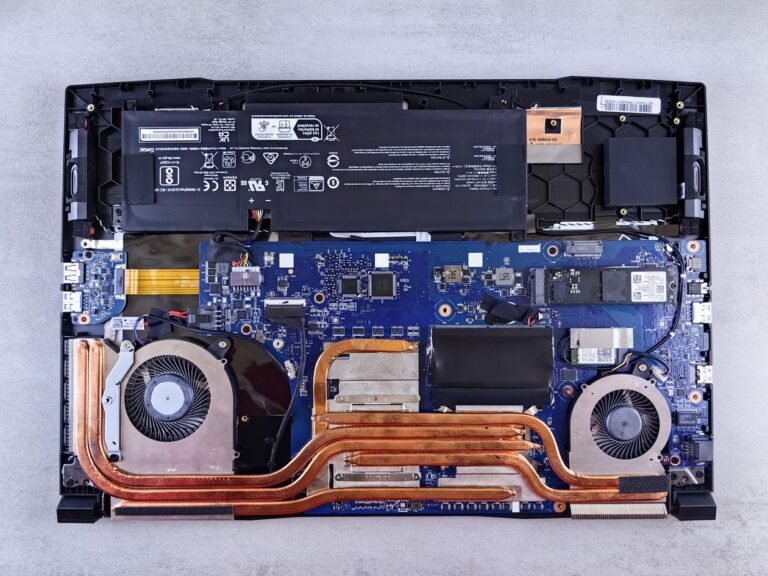
Check whether your computer can be upgraded later before deciding. Many desktops allow RAM upgrades in minutes, so you can start with 32 GB and add more if needed. Many thin laptops, however, have soldered RAM that cannot be changed, so the amount you choose at purchase is permanent. For soldered laptops, err on the side of more RAM, because you cannot fix a shortage later. For upgradable desktops, start with what you need now and upgrade when evidence shows you need more.

DDR4 Versus DDR5, and Why Speed Matters Less
Most new computers in 2026 use DDR5 RAM, while older computers use DDR4. DDR5 is faster and more efficient, but it is not compatible with DDR4 slots, so you cannot mix them. When buying RAM, match the type your motherboard supports, and check the maximum speed it accepts. Faster RAM can help in some games and professional apps, but for everyday use the difference between common speeds is small compared with the difference between 8 GB and 16 GB. Capacity first, then speed, is the right priority for most buyers.
Dual-channel memory is another detail worth knowing. Two sticks of RAM, for example two 8 GB sticks making 16 GB, usually perform better than a single 16 GB stick, because the computer can access both channels at once. If you upgrade, buy a matched pair where possible, and install them in the slots your motherboard manual recommends for dual-channel operation. This small detail can improve performance by a noticeable amount in games and memory-heavy apps, at no extra cost.
How to Check Your Current RAM Use
Before buying, check how much RAM you actually use. Open Task Manager with Ctrl, Shift, and Esc, go to Performance, then Memory, and look at total RAM, speed, and slots used. Then use your computer normally for a day and check the memory graph: if usage regularly hits 90 percent or more, you need more RAM. If it stays below 70 percent, your current amount is probably sufficient, and slowness may come from storage, processor, or background programs instead. This evidence-based check prevents unnecessary spending.
Also check how many RAM slots you have and whether they are full. A computer with two slots and one empty slot can be upgraded cheaply by adding a second stick. A computer with all slots full requires replacing existing sticks, which costs more. Your computer manufacturer’s manual or a free system information tool can tell you the maximum RAM supported and the type required. Never buy RAM without confirming type, speed, and maximum capacity first.
RAM for Laptops, Chromebooks, and Gaming PCs
Laptop buyers should prioritise 16 GB in 2026, because many laptops cannot be upgraded later. A laptop with 16 GB, an SSD, and a modern processor will handle school, office, and light creative work for years. Gaming laptops should have at least 16 GB, with 32 GB preferred for the latest titles and streaming. Chromebooks are different: ChromeOS uses less memory than Windows, so 8 GB can be sufficient for browsing and schoolwork, but 16 GB is still better if you use many tabs or Android apps.
Gaming desktops deserve a separate note. The graphics card’s own memory, called VRAM, is separate from system RAM, and both matter. A game may need 16 GB of system RAM plus 8 GB or more of VRAM for high settings. Do not confuse the two when shopping: system RAM helps the whole computer, while VRAM helps the graphics card render detailed scenes. A balanced gaming PC in 2026 typically pairs 32 GB of system RAM with a graphics card that has at least 8 GB of VRAM.
Conclusion
So, how much RAM do you really need in 2026? For most people, 16 GB is the answer: enough for Windows 11, browsers, office apps, and moderate gaming, with room for future software. Choose 8 GB only for very light use and tight budgets, choose 32 GB for creators, heavy multitaskers, and serious gamers, and reserve 64 GB for professional workloads that genuinely use it. Check your actual usage, consider whether you can upgrade later, and spend the savings from avoiding excess RAM on an SSD or another upgrade that will make a bigger difference.
For more free Windows help, explore the InsuraBytes free tools hub and use the My Device Info tool to check your current system before you buy RAM. Buying the right amount, rather than the largest amount, is the smartest upgrade decision you can make.
RAM Myths You Should Ignore
Several myths about RAM persist online. One myth is that more RAM always makes a computer faster. In reality, once you have enough RAM for your workload, adding more does nothing noticeable, because the extra memory simply sits unused. Another myth is that you must fill all RAM slots to get good performance. Dual-channel with two sticks is beneficial, but a single stick of sufficient size still works well, and you can add a second stick later. A third myth is that RAM speed matters more than capacity. For most users, capacity matters far more, and paying a large premium for the fastest RAM is poor value compared with moving from 8 GB to 16 GB.
Another common myth is that closing background programs frees RAM in a way that permanently speeds up a computer. Windows manages RAM actively, keeping frequently used data ready for quick access, so high RAM usage alone is not a problem if the computer feels responsive. The real warning sign is not high usage, but constant swapping to disk, freezes, and slow switching between apps. Judge RAM by how your computer feels and by Task Manager’s disk and memory graphs together, not by a single percentage.
Upgrading RAM: What to Buy and How to Install It
If you decide to upgrade, first confirm your computer’s RAM type, maximum capacity, and number of slots. Desktops usually use DIMM sticks, while laptops use smaller SO-DIMM sticks. Buy from a reputable brand, match the type and speed your motherboard supports, and buy a matched pair if you are upgrading to dual-channel. Before installing, shut down, unplug, and ground yourself by touching a metal part of the case. Open the case or laptop panel, release the clips on the RAM slots, align the notch on the stick with the slot, press firmly until the clips click, and replace the panel.
After installation, turn on the computer and check Task Manager to confirm the new total is recognised. Run your usual programs for a day to confirm stability. If the computer beeps, fails to start, or shows less RAM than expected, reseat the sticks, try one stick at a time, and check compatibility with your motherboard’s qualified vendor list. RAM installation is one of the easiest computer upgrades, but if you are uncomfortable opening a computer, a local repair shop can do it quickly and inexpensively.
Frequently Asked Questions
Is 16 GB enough for gaming in 2026? Yes for most games at 1080p and 1440p, especially with a good graphics card. The most demanding new titles and heavy multitasking while gaming benefit from 32 GB, so gamers who stream or use many background apps should consider 32 GB. Does RAM affect storage? No. RAM is temporary workspace, while an SSD or hard drive stores files permanently. Adding RAM will not give you more space for photos or games. Can I mix different RAM sticks? Sometimes, but it is not recommended. Mixed sticks may run at the slower stick’s speed or cause instability. A matched pair from the same brand and model is the safest choice.
Will upgrading RAM void my warranty? On most desktops, no. On some laptops, opening the case may affect warranty terms, so check your manufacturer’s policy before upgrading, especially for new laptops with sealed designs. How long will 16 GB remain enough? For everyday use, 16 GB should remain comfortable for several more years. Software demands grow slowly, and 16 GB already includes headroom for growth. Creators and gamers should reassess sooner, because their software demands grow faster.
Your RAM Buying Checklist
Use this checklist before you buy. Check your current RAM amount and usage in Task Manager. Identify your main use: light browsing, office work, gaming, or creation. Check whether your computer can be upgraded later, or whether RAM is soldered. Choose 8 GB only for light use, 16 GB for most users, 32 GB for creators and serious gamers, and 64 GB only for professional workloads. Match RAM type and speed to your motherboard, buy a matched pair for dual-channel, and confirm the maximum capacity. Finally, compare the cost of RAM with the cost of an SSD upgrade, because for many slow computers, an SSD delivers a bigger improvement than extra RAM alone.
With that checklist, you can answer the question of how much RAM you really need in 2026 with evidence, not guesswork. Buy enough to work smoothly today, with a little headroom for tomorrow, and spend the rest of your budget where it will actually be felt: faster storage, a better screen, or a more capable processor.
2 Comments