
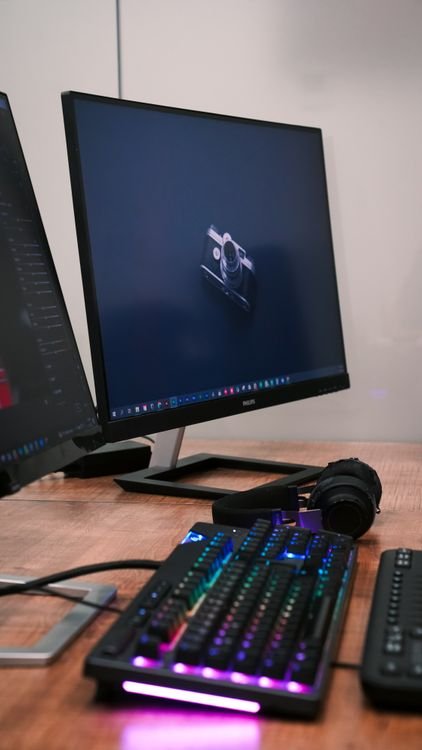
How to Choose a Monitor for Your PC in 2026

Learning how to choose a monitor for your PC in 2026 can feel overwhelming, because there are more sizes, resolutions, panel types, and refresh rates than ever before. A monitor is the part of your computer you look at for hours every day, so choosing the wrong one can mean eye strain, blurry text, or a screen that does not suit your games, your work, or your budget. The good news is that you do not need to understand every specification to choose a monitor for your PC well. You only need to know how you will use it, how much space you have, and which few features actually matter for that use. In this guide, we explain size, resolution, refresh rate, panel type, ports, and price in plain language, and we help you pick the right monitor for work, gaming, creative work, or everyday use.
Before you shop, measure your desk, check what ports your computer has, and think about how far you sit from your screen. A monitor that is too large for your desk, or that needs a port your computer does not have, will cause problems no matter how good its picture is. For a quick check of your system, visit the InsuraBytes free tools hub and use the device info tool to confirm your Windows version, graphics, and system details.
Start With How You Will Use Your Monitor
The best monitor for you depends first on how you will use it. If you mainly work with documents, email, and web browsing, you need a sharp, comfortable screen with good text clarity, and you do not need a very high refresh rate or a gaming panel. A 24-inch or 27-inch Full HD or Quad HD monitor is usually enough, and you should look for a screen that is easy on your eyes, with a matte finish to reduce glare and a stand that lets you adjust height and tilt. If you work with spreadsheets or code, a wider screen, or a second monitor, can help you see more at once, and a 27-inch Quad HD screen is a popular sweet spot.
If you play games, your priorities change. You will want a higher refresh rate, such as 144 hertz or 165 hertz, a fast response time, and support for adaptive sync, so games look smooth and do not tear or stutter. If you edit photos or video, color accuracy matters more than refresh rate, and you should look for a monitor that covers a wide color range, such as 99 percent sRGB, and that can be calibrated. If you watch movies, a larger screen with good contrast and HDR support can make a difference, although HDR on a budget monitor is often not as impressive as it sounds. Write down your main use first, because it will guide every other choice in this guide.
Choose the Right Size and Shape
Monitor size is measured diagonally, in inches, and the most common sizes in 2026 are 24 inches, 27 inches, 32 inches, and ultrawide models that are 34 inches or more. A 24-inch monitor is a good choice for a small desk, a second screen, or a budget setup, and it works well with Full HD resolution. A 27-inch monitor is the most popular size for most users, because it is large enough for work and gaming, but not so large that you have to turn your head to see the edges. A 32-inch monitor is better for a large desk, for 4K resolution, or for creative work where you need a lot of space, but it can feel too large if you sit very close to it.
Ultrawide monitors, with a 21:9 shape instead of the usual 16:9 shape, are wider than a normal monitor and can replace two screens for many people. They are excellent for video editing, multitasking, and immersive gaming, but they can be expensive, they take up a lot of desk space, and some older games and videos do not fill the whole screen. Curved monitors can also feel immersive, especially for gaming and movies, but a flat monitor is usually better for office work and for photo editing, where a straight line should look straight. Measure your desk depth as well as width, because a larger monitor needs more distance between you and the screen to feel comfortable.
Resolution: Full HD, Quad HD, or 4K?
Resolution is the number of pixels on your screen, and it determines how sharp text and images look. Full HD, or 1920 by 1080 pixels, is the most common resolution, and it is fine for a 24-inch monitor, for everyday use, and for a tight budget. Quad HD, or 2560 by 1440 pixels, is sharper, and it is a good match for a 27-inch monitor, because it gives you more space for windows and sharper text without making everything too small. 4K, or 3840 by 2160 pixels, is the sharpest option, and it is best for a 27-inch or 32-inch monitor, for photo and video editing, and for watching high-resolution content.
Higher resolution is not always better, however. A 4K monitor needs a more powerful graphics card to run games smoothly, and it can make text and icons look very small unless you adjust scaling in Windows. Windows 11 lets you change scaling to 125 percent or 150 percent, which makes text larger and easier to read on a high-resolution screen, but some older programs may not scale perfectly. As a rule, choose Full HD for a 24-inch budget monitor, Quad HD for a 27-inch all-round monitor, and 4K for a 32-inch monitor or for creative work where sharpness matters most. Do not pay extra for 4K if your computer cannot drive it well, or if you mainly use your monitor for email and web browsing.
Refresh Rate and Response Time
Refresh rate is how many times per second your monitor updates its picture, measured in hertz. A standard office monitor runs at 60 hertz, which means it updates 60 times per second, and that is enough for documents, email, and video. A gaming monitor often runs at 144 hertz, 165 hertz, or even 240 hertz, which makes motion look much smoother, especially in fast games. A higher refresh rate can also make scrolling and moving windows feel smoother, even outside games, although the difference is less noticeable for office work. If you play fast-paced games, a 144 hertz monitor is a good starting point, and you will need a graphics card that can produce enough frames per second to take advantage of it.
Response time is how quickly a pixel can change color, measured in milliseconds, and a lower number is better for gaming, because it reduces ghosting and blur in fast motion. Most gaming monitors advertise a 1 millisecond response time, while office monitors may be 4 or 5 milliseconds, which is fine for everyday use. Adaptive sync, called FreeSync for AMD graphics cards and G-Sync for NVIDIA graphics cards, helps your monitor and graphics card work together to prevent screen tearing, where the picture looks split in the middle. If you have an NVIDIA card, look for G-Sync Compatible, and if you have an AMD card, look for FreeSync. You do not need to pay for the highest refresh rate if you do not play games, but you should not buy a very slow monitor for gaming either.
Panel Types: IPS, VA, and TN
Panel type affects color, viewing angles, and contrast. IPS panels are the most popular choice in 2026, because they have good color accuracy, wide viewing angles, and decent response times, which makes them suitable for work, creative tasks, and gaming. An IPS monitor will look good from the side as well as from the front, which is useful if you share your screen or use a second monitor at an angle. VA panels have better contrast and deeper blacks than IPS, which makes them good for watching movies and playing games in a dark room, but they can have narrower viewing angles and slower response times in some models. TN panels are the oldest type, and they are very fast and cheap, but they have poor color and viewing angles, so they are now mainly used for very budget or competitive gaming monitors.
For most users, an IPS panel is the safest choice, because it does a little bit of everything well. If you watch a lot of movies in a dark room and want the deepest blacks, a VA panel may suit you better. If you play competitive games and want the fastest possible response, a modern fast IPS or TN panel can both work, but check reviews for the specific model, because panel type alone does not tell you the whole story. Also, look for a matte screen rather than a glossy screen if your room has a lot of light, because a matte screen reduces reflections and glare.

Color Accuracy, Brightness, and HDR
Color accuracy matters most if you edit photos, design graphics, or work with video, but it also affects how pleasant a monitor looks for everyday use. Look for a monitor that covers at least 99 percent of the sRGB color space for general work, and a wider range, such as DCI-P3, if you work with video or print. Some monitors are factory calibrated, which means their colors have been checked before they leave the factory, and they often include a calibration report. If color is critical for your work, you may also want to buy a separate color calibrator, which can adjust your monitor to show accurate colors over time.
Brightness is measured in nits, and most monitors offer 250 to 350 nits, which is enough for a normal indoor room. A brighter monitor, with 400 nits or more, is better if your room has a lot of sunlight. HDR, or High Dynamic Range, can improve contrast and color in movies and games, but true HDR requires a bright screen and local dimming, which is expensive. Many budget monitors advertise HDR, but they do not have the brightness or dimming to show a real HDR effect, so do not pay extra for HDR unless the monitor is certified as DisplayHDR 600 or higher, and you actually watch HDR content.
Ports, Ergonomics, and Built-In Features
Before you buy a monitor, check the ports on your computer and on the monitor. Most modern monitors have HDMI and DisplayPort, and some also have USB-C, which can carry video, data, and power through one cable, especially for laptops. DisplayPort is usually the best choice for a high refresh rate or high resolution on a Windows PC, while HDMI is more common on laptops, consoles, and TVs. Make sure your computer has a matching port, or that you are willing to buy an adapter. Also, check that the monitor comes with the cable you need, because some monitors do not include a DisplayPort cable in the box.
Ergonomics are easy to overlook, but they matter if you use your monitor for hours every day. Look for a stand that lets you adjust height, tilt, and swivel, and ideally pivot to portrait mode if you work with long documents or code. If the stand is not adjustable enough, you can use a monitor arm, or a monitor that supports VESA mounting, which lets you attach it to a stand or wall mount. Built-in speakers are convenient, but they are usually not very good, so you may want separate speakers or headphones for music and movies. A monitor with a USB hub can also be useful, because it lets you plug a keyboard, mouse, and other devices into the monitor instead of your computer.
How Much Should You Spend?
Monitor prices in 2026 range from under 100 dollars for a basic 24-inch Full HD office monitor, to 300 to 500 dollars for a good 27-inch Quad HD monitor, to 800 dollars or more for a high-end 4K, high refresh rate, or ultrawide model. For most users, spending 200 to 400 dollars on a 27-inch Quad HD IPS monitor with a 75 hertz or 144 hertz refresh rate gives the best balance of size, sharpness, and value. Spending less is fine if you only need a basic second screen, but spending more is worth it if you game, edit photos, or work on your computer all day, because you will look at the screen for thousands of hours.
To get the best value, read reviews from trusted sources, check the warranty, and buy from a retailer with a good return policy, so you can return the monitor if it has dead pixels or a problem. Check the dead pixel policy before you buy, because some retailers will only accept a return if there are several dead pixels, while others will accept a return for one. Also, consider buying a monitor with a three-year warranty, because a monitor should last many years, and a longer warranty is a sign of a better-built product. Do not buy a monitor based on one specification alone, and do not assume that the most expensive monitor is the best one for you.
Setting Up Your New Monitor
Setting up a new monitor is usually simple. Connect it to your computer with the right cable, plug it into power, and turn it on. Windows 11 should detect it automatically, and you can adjust its settings in Settings, under System, then Display. Set the resolution to the recommended value, which is the native resolution of your monitor, and set the refresh rate to the highest value your monitor and cable support. If you have two monitors, you can choose to extend your desktop, duplicate it, or use only one screen, and you can drag the monitors in the Display settings to match their physical position on your desk.
After you set the resolution, adjust the brightness and contrast to a comfortable level, and turn on Night Light in Windows if you use your computer in the evening, because it reduces blue light and can make the screen easier on your eyes. If your monitor has a color mode, choose sRGB for general work, or a custom mode if you have calibrated it. Sit at a comfortable distance, with the top of the screen at or slightly below eye level, and take regular breaks to rest your eyes. A well-set-up monitor should feel comfortable, not tiring, even after a long day.
Conclusion
Choosing a monitor for your PC in 2026 is easier when you start with your main use, then choose size, resolution, refresh rate, and panel type to match it. For most people, a 27-inch Quad HD IPS monitor is an excellent all-round choice, while gamers should look for a higher refresh rate and adaptive sync, and creative workers should look for color accuracy and a larger, sharper screen. Check your ports, measure your desk, set a budget, and read reviews before you buy, so you get a monitor that will serve you well for years.
Once you have chosen your monitor, set it up correctly in Windows, adjust its height and brightness, and enjoy a clearer, more comfortable screen. For more free tools to help you get the most from your Windows PC, visit the InsuraBytes tools hub.
Frequently Asked Questions
What size monitor is best for most people? A 27-inch monitor is best for most people, because it is large enough for work and gaming, but not so large that it overwhelms a normal desk. A 24-inch monitor is better for a small desk or a budget, and a 32-inch monitor is better for 4K or for a large desk.
Is 4K worth it for a monitor? 4K is worth it if you have a 27-inch or 32-inch monitor, if you edit photos or video, or if you watch a lot of high-resolution content. It is less important for a 24-inch monitor, for everyday office work, or if your graphics card cannot run games smoothly at 4K.
Do I need a 144 hertz monitor? You need a 144 hertz monitor if you play fast-paced games and want smooth motion. For office work, email, and web browsing, a 60 hertz or 75 hertz monitor is usually enough, although a higher refresh rate can make scrolling feel smoother.
Photo credits: Top and in-body photos are royalty-free photos from Pexels.
2 Comments